Google Gemini transforms Google Workspace with AI assistant features for Sheets and Keep


2 Sources
2 Sources
[1]
I started using Gemini in Google Sheets, and it's been a game-changer
When he is not busy with technical analysis and software evaluation, Parth dedicates his time to watching K-dramas, studying mobile technology trends and the role of artificial intelligence. I used to consider myself a Google Sheets power user, but that usually meant spending 40 minutes scouring forums for the right nested formula or manually cleaning thousands of rows of messy data. That changed last week. Since I started using Gemini directly within my spreadsheets, the friction has completely vanished. What used to be a tedious afternoon of data organization and complex Lookups is now handled in seconds with simple prompts. If you are still managing spreadsheets the old way, you are working harder than you need to. Here is why Gemini's integration in Google Sheets is the ultimate game-changer for anyone who lives in cells and columns. Related I thought Google Docs was enough until I paired it with Gemini The secret weapon for flawless documents Posts 4 By Parth Shah Unlock Gemini in Google Sheets Before I go over the specific details, let's discuss the basics. Unlike Google Workspace apps, Gemini is a paid add-on. There is a free Gemini version, but to unlock the same in Google Workspace apps, you need to subscribe to Google AI Pro. The pricing is set at $20 per month, and the plan also offers 2TB of Google Drive storage. After you subscribe to a relevant plan, the Gemini icon should appear in the upper-right corner of Google Sheets. Explore Gemini in Google Sheets When I first started using Gemini in Sheets, I thought it was just going to be a fancy Help button. I was wrong. It's more like having a junior data analyst living inside my sidebar who never gets tired of my questions. If I need to track something new, like a 12-week lead-gen campaign, I don't manually type headers anymore. I just prompt: Create a table for a sales pipeline with columns for Lead Source, Contact Date, Deal Value, and Probability of Closing. It builds the entire structure in seconds. In my case, Gemini even filled cells with random information. I had to ask it to leave those cells empty. I can even highlight my sales table and ask: What are the top three trends in this data? Gemini not only gives me answers but also generates relevant charts to back up those claims. Before exploring Gemini, I used to spend way too much time fiddling with the Chart Editor. Now, I just say the following to create a clean, formatted chart Create a bar chart showing revenue by sales rep for last month. I can even ask for analysis steps to see exactly how it calculated the date before I insert it. Since I have my historical sales data there, I have started using it for 'What if?' planning. I will ask: Based on this table, what is my projected net income for next quarter if sales grow by 10%? It doesn't just do the math; it explains the logic behind the forecast. Summarizing data using Gemini One of my favorite productivity hacks with Gemini in Sheets is using it to prep for meetings. Instead of spending 20 minutes scanning columns to figure out what I need to tell my team, I let the AI do the heavy lifting. I simply open the Ask Gemini side panel and type: Summarize this table and give me the top three talking points for my meeting. Within seconds, it gives me a high-level overview of what the data actually represents. I had a laptop sales performance table with columns like laptop model, salesperson, store region, profit, and sales. It showed me which laptop was the highest-selling model, who led the sales numbers, and which region had the best revenue. Sometimes I inherit a massive, complex sheet from a colleague. I will ask Gemini: Explain what this sheet is doing and how the calculations work in simple terms. It breaks down the logic of the tabs and formulas so I can speak confidently about the data. Related I tried to let Gemini write my emails for a week -- here is why I had to intervene I let Gemini write my emails for a week and this happened Posts 1 By Ben Khalesi Asking Gemini to get details from Google Sheets The real magic happened for me when I realized I didn't even need to have Google Sheets open to get answers. Subscribe to our newsletter for Gemini in Sheets tips Make Gemini work inside your spreadsheets: subscribe to the newsletter for tested prompts, ready-made table and chart templates, sample 'summarize' and 'forecast' commands, and concise walkthroughs that help you apply Gemini in Google Sheets. Subscribe By subscribing, you agree to receive newsletter and marketing emails, and accept Valnet's Terms of Use and Privacy Policy. You can unsubscribe anytime. By enabling the Google Workspace extension toggle in my Gemini settings, the Gemini web and mobile apps gained the ability to read my entire Drive. Now, if I'm on the go and need a specific data point, I just open the Gemini app and ask: Get me the total sales figure for November from the Office-MacBook Pro spreadsheet. In seconds, it scans my file, finds the right sheet, and pulls the exact number without me ever having to squint at a tiny spreadsheet on my phone. It's like having a voice-activated shortcut to every cell I have ever typed. It's just one of the examples. The possibilities are endless here. From hours to seconds If you are on the fence, here is my takeaway: Gemini for Google Sheets is the upgrade I didn't know I was waiting for. It's faster, smarter, and makes working in spreadsheets actually fun again. If you are still dealing with complex syntax or manual cleanup, this is your sign to give it a try. Aside from Google Sheets, Gemini works quite well with other apps as well. I recently started using it to create slides in Google Slides and came away impressed.
[2]
I didn't expect Gemini to make Google Keep this much more useful
After removing the grime of an MBA and a ten-year long marketing career, Saikat dabbled in web development, networking, and SAP. He was an editor of several MakeUseOf sections from 2008 to 2024, having special interests in AI, productivity methods, and iOS. He has formerly contributed to top web publications like Lifewire, Lifehacker, OnlineTechTips, GuidingTech, and GoSkills. You will find his complete portfolio on Authory. For years, Google Keep has been my reliable sidekick. A sticky-note app to capture ideas quickly. But it's easy to forget the good ideas once notes start piling up. The arrival of Gemini quietly changed that. What used to be a dumping ground for thoughts and tasks now behaves more like an active assistant that understands context, retrieves information on demand, and connects ideas across my Google Workspace. Instead of just storing notes, the Gemini and Keep combo now helps me act on them, organize them automatically, and even surface patterns I didn't realize were there. I didn't expect this pairing to matter much, but together they are shaping how I capture, find, and use information every day. 1 Turn loose thoughts into actionable checklists with Gemini Let Gemini manage the formatting of basic lists Google Keep has always been great for checklists. Now, you can use Keep with Gemini in several interesting ways. You can just share a thought with Gemini, and the AI will list it on Keep, item by item. For instance, you can give Gemini a loose prompt like, Make a packing list for a three-day business trip to [Location] in March. In seconds, it generates a fully formed checklist note in Keep, complete with sensible choices. On Pixel phones, you can use the Help me make a list feature directly. Otherwise, it works just as well on Gemini with the Keep connector enabled on other platforms. What's remarkable is the context awareness. Gemini factors in location, duration, and even seasonal weather, which are exactly the things that we spend time researching. That makes Keep feel more like a proactive assistant with Gemini's help. I recently asked for a "week of high-protein vegetarian dinners grocery list," and asked it to be specific for one person. Though Gemini didn't group items by produce and pantry inside the same note, the checklist was neatly organized. This trick saves me real time in the grocery store and removes the friction of meal planning for a week and the list-making that follows. 2 Transform your messy notes into a knowledge base You no longer need labels and tags to find what you saved months ago For me, Keep tends to become a digital junk drawer. Random links, half-written ideas, reminders, and old lists all pile up. Gemini acts as a semantic search layer over that chaos. You can ask natural language questions like (type or use voice), What travel recommendation did I save a few weeks back? You get a direct answer instead of scrolling endlessly or using Keep's own search. This has fundamentally reduced my guilt over my organizational laziness. I no longer obsess over Keep's colors, labels, or tag naming conventions because I trust Gemini's retrieval. That alone has reduced the extra load of maintaining a "perfect system," which often becomes a form of procrastination. As a stress test, I asked Gemini to "summarize all my notes about kitchen renovation paint colors from the last year." It pulled hex codes, brand names, and scattered thoughts from multiple unrelated notes and turned them into a single, coherent summary. That's when Keep felt like a "relational database" rather than a vanilla sticky note app. 3 The connected app fills the dots between the Google apps Move smoothly from an email to a checklist or a document Gemini's connected apps are where this integration starts to feel genuinely powerful. Because it can see across Gmail, Docs, and Keep, it acts as the portal between apps that were somewhat isolated. You can ask it to find a long email thread about project requirements and turn that information directly into a Keep checklist. That ability turns passive communication into actionable tasks almost instantly. Instead of reading emails or manually extracting action items, you can speedily move through your inbox. It's less about saving seconds and more about removing entire steps from your workflow. 4 Turn it on with mobile voice commands and dictation Capture thoughts on the go by speaking formatted notes instead of rambling paragraphs Close On mobile, speaking to Gemini is faster than typing, but the real upgrade is that you can dictate structure, not just words. Instead of dumping a voice-to-text paragraph, you can say, "Add 'buy milk' to my grocery list note," and Gemini will find the right note and append the item as a checkbox. In the screenshot above, I asked it to create a grocery list (for a week of high-protein Indian vegetarian dinners for one person with quantities in Kgs). Note the Gemini Synth ID at the foot of the note. Of course, you can open Keep and navigate to the correct list and dictate on the note as well. But Gemini can remove a lot of this friction. After all, friction is often enough to make fleeting ideas disappear. I now capture tasks while walking, cooking, or commuting; moments where traditional note-taking usually fails. The result is fewer forgotten thoughts and far less mental clutter. 5 Use Gemini to force new connections between notes Mash up unrelated notes for fresher ideas Most people use Keep as a box, not as a blender. Gemini changes that by letting you combine unrelated notes to spark new ideas. You can ask it to read two completely different notes -- say, one on writing tips and another on mindfulness strategies -- and connect them using shared themes. Or, just let it hallucinate as it tends to do sometimes. Subscribe to the newsletter for Gemini + Keep tips Discover hands-on Gemini and Google Keep workflows, subscribe to the newsletter to get practical experiments, step-by-step prompts, and use cases that show how to turn scattered notes into actionable checklists and searchable knowledge. Subscribe By subscribing, you agree to receive newsletter and marketing emails, and accept Valnet's Terms of Use and Privacy Policy. You can unsubscribe anytime. This works surprisingly well for creative thinking. Your static notes start interacting instead of sitting idle, helping you see patterns and angles you would have missed on your own. When I'm stuck, I treat this as a creative prompt generator and a different way to reframe the stuff in my notes. The output doesn't need to be perfect; it just needs to be interesting enough. Try this Gemini + Keep experiment right now If you want to feel the slightly unsettling power of this integration, open Gemini and ask: "Based on my notes in Keep, what are some tasks or projects I seem to have left unfinished?" It's a procrastinator's nightmare. But when Gemini + Keep starts reminding you of things you forget, it becomes a creator's ally.
Share
Share
Copy Link
Google Gemini is reshaping how users interact with Google Workspace apps through deep integration with Sheets and Keep. Available via Google AI Pro at $20 per month, the AI assistant handles complex spreadsheet formulas, creates context-aware checklists, and acts as a semantic search layer across notes. Users report dramatic time savings on tasks like data analysis and information management.
Google Gemini brings AI assistant capabilities to Google Workspace apps
Google Gemini has evolved beyond a standalone chatbot into a deeply integrated AI assistant within Google Workspace. Users are discovering that the combination of Google Gemini with core productivity tools like Sheets and Keep fundamentally changes how they handle data analysis, note-taking, and information management. The integration requires a Google AI Pro subscription at $20 per month, which also includes 2TB of Google Drive storage
1
.What sets this implementation apart is the shift from manual workflows to prompt-based automation. Tasks that previously consumed hours now complete in seconds through simple natural language requests. The Gemini icon appears in the upper-right corner of Google Sheets after subscription, providing immediate access to capabilities that function like having a virtual data analyst embedded within the application
1
.Gemini in Google Sheets eliminates formula frustration and manual data work
The most significant impact appears in spreadsheets, where Gemini in Google Sheets handles complex tasks through conversational prompts. Users can request complete table structures with specific columns, and the system builds them instantly. For example, asking to "Create a table for a sales pipeline with columns for Lead Source, Contact Date, Deal Value, and Probability of Closing" generates the entire framework without manual header typing
1
.
Source: Android Police
Data analysis becomes dramatically more accessible. Highlighting a sales table and asking "What are the top three trends in this data?" produces not just answers but automatically generated charts to visualize the insights. This eliminates the time previously spent navigating the Chart Editor interface. Users can request specific visualizations like "Create a bar chart showing revenue by sales rep for last month" and receive formatted results immediately
1
.The forecasting capabilities extend beyond basic calculations. When users ask questions like "Based on this table, what is my projected net income for next quarter if sales grow by 10%?", Gemini provides both the mathematical projection and explains the underlying logic. This transparency helps users understand the reasoning before inserting calculated data into their spreadsheets
1
.Productivity hacks include meeting prep and remote data access
One of the most practical productivity hacks involves meeting preparation. Instead of spending 20 minutes scanning columns, users can open the Ask Gemini side panel and request: "Summarize this table and give me the top three talking points for my meeting." The AI assistant delivers high-level overviews that identify key patterns, such as which product had the highest sales, who led performance metrics, and which region generated the best revenue
1
.The integration extends beyond the application itself. By enabling the Google Workspace extension toggle in Gemini settings, the Gemini web and mobile apps gain the ability to read entire Drive contents. This means users can query specific data points while mobile, asking questions like "Get me the total sales figure for November from the Office-MacBook Pro spreadsheet" without opening the file
1
.Gemini in Google Keep transforms note-taking into active information retrieval
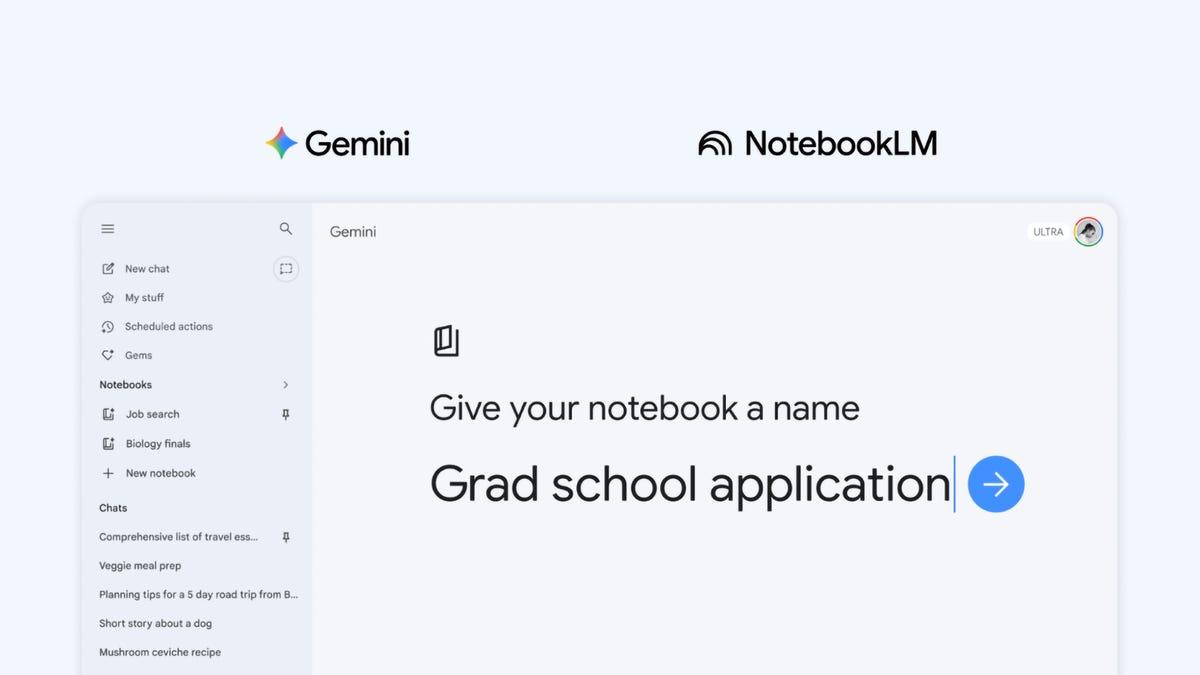
Google Keep, traditionally a simple sticky-note application, gains substantial utility through Gemini integration. The AI assistant converts loose thoughts into structured, context-aware checklists. A prompt like "Make a packing list for a three-day business trip to [Location] in March" generates a complete checklist that factors in location, duration, and seasonal weather considerations
2
.
Source: MakeUseOf
The context awareness extends to meal planning and grocery shopping. Requesting a "week of high-protein vegetarian dinners grocery list" specific for one person produces organized checklists that remove the friction from planning and list-making. On Pixel phones, users can access the "Help me make a list" feature directly, while other platforms achieve the same results through Gemini with the Keep connector enabled
2
.Related Stories
Semantic search eliminates the need for meticulous organization
Perhaps the most liberating aspect of Gemini and Google Workspace apps integration is how it functions as a semantic search layer over accumulated notes. Users can ask natural language questions like "What travel recommendation did I save a few weeks back?" and receive direct answers instead of scrolling through endless entries. This capability reduces the pressure to maintain perfect organizational systems with colors, labels, and tag naming conventions
2
.The retrieval capabilities handle complex queries across multiple notes. When asked to "summarize all my notes about kitchen renovation paint colors from the last year," Gemini pulls hex codes, brand names, and scattered thoughts from unrelated notes and synthesizes them into a single coherent summary. This transforms Keep from a simple note repository into something resembling a relational database
2
.Streamlined workflows connect isolated Google apps into unified system
The connected apps feature represents where this integration demonstrates genuine power. Because Gemini can see across Gmail, Docs, and Keep, it acts as a portal between previously isolated applications. Users can request that email threads about project requirements be converted directly into Keep checklists, turning passive communication into actionable tasks almost instantly. This removes entire workflow steps rather than just saving seconds
2
.Voice commands on mobile add another dimension to data organization. Instead of dictating unstructured paragraphs, users can speak commands like "Add 'buy milk' to my grocery list note," and Gemini locates the correct note and appends the item as a checkbox. This structured dictation capability makes mobile capture significantly more efficient than traditional voice-to-text approaches
2
.The implications for knowledge workers are substantial. As automation handles routine formulas and data organization tasks, attention shifts toward interpretation and decision-making. The short-term impact focuses on time savings and reduced friction in daily workflows. Long-term, this integration pattern suggests a future where AI assistants mediate most interactions with productivity software, understanding context across applications and anticipating user needs. Organizations already invested in Google Workspace should monitor how these capabilities scale across teams, particularly as prompts become more sophisticated and users develop fluency in conversational interfaces for complex data tasks.
References
Summarized by

Navi
[1]
Related Stories
Gemini in Google Sheets now handles complex tasks with a single AI prompt, saving 20 minutes
09 Mar 2026•Technology
Gemini burrows deeper into Google Workspace with AI-powered document creation and editing
10 Mar 2026•Technology
Google Gemini: Revolutionizing Daily Tasks with AI-Powered Assistance
03 Mar 2025•Technology

Recent Highlights


Recent Highlights
Today's Top Stories











Your Daily Dose of Curated AI News
Don’t drown in AI news. We cut through the noise - filtering, ranking and summarizing the most important AI news, breakthroughs and research daily. Spend less time searching for the latest in AI and get straight to action.

