Firefox 148 introduces AI kill switch, giving users full control over AI features


4 Sources
4 Sources
[1]
Before You Turn On Firefox's AI Kill Switch, Consider Keeping These 6 Features
More browsers have been integrating AI into their toolsets based on the notion that people are clamoring to use it as they surf the web. Chrome now offers direct access to Gemini, while Microsoft Edge shoves Copilot at you. This new focus has sparked a backlash among many users who say they simply want clean, efficient, and reliable products, not a constant barrage of AI tools and tricks. Well, one company that's gotten the message is Mozilla. The latest option in Firefox lets you disable AI so you can focus on your web browsing. Introduced in Firefox 148, the AI kill switch allows you to block the integrated AI enhancements. You can easily disable all of them in one shot or choose which ones you want to allow. The switch helps you control automatic language translations, AI-based tab group suggestions, summaries in link previews, and the alt-text that's automatically included with images that you add to PDFs in the browser. Plus, you're able to block AI chatbot providers from appearing in the sidebar or choose the one you'd like to see by default. Some of these enhancements sound more useful than others. That's why Firefox's developers get a thumbs up for giving you a choice as to which ones to block or allow. How does this work? Let's check it out. Update Firefox First, make sure you're running the latest version of Firefox on your computer. For that, open the browser, click the three-lined icon in the top-right corner, go to Help, and then select About Firefox. The browser will automatically determine if you need the latest update and then download and install it. Restart Firefox for the new version to take effect. Review the AI Enhancements After restarting Firefox, head to Settings > AI Controls. The Block AI enhancements option lets you disable all of them in one go. Turn on the switch to disable all AI features. A confirmation window pops up. Click Block to proceed. But hang on. Maybe you should check each feature first to see which you want to allow. Mozilla promises to add more features to the block-list in the future. For now, here are the ones you'll find. 1. Automatic Translations This one automatically translates websites from other languages into your own native tongue. As you browse a specific site, Firefox continuously translates each page in real time. You can also highlight specific text to receive a translation. Even with this option turned off, you can manually ask the browser to translate a web page or text. But if you're jumping from one page to another, you may want the translation to appear automatically. On the plus side, Mozilla says the translations occur directly on your device and not in the cloud. So even if you enable this one, the pages and translations you see should be safe from prying eyes. To allow this, click the drop-down button that says Blocked and change it to Available. 2. Automatic Alt Text for Images in PDFs Open a PDF in Firefox, and you can add comments, signatures, text, drawings, and even images to the file. For people with vision problems, a screen reader can read the text in a file but not the images. That's where alt-text tags come in handy, as they provide descriptions of images. With this AI option enabled, Firefox automatically generates an alt-text tag based on its analysis of the image. But you still will want to review the tag for accuracy. With this disabled, you'd have to manually add the alt text description yourself. Here, Mozilla aims to preserve your privacy by running the AI alt-text creator directly on your device. That means your images and text don't get sent to the cloud. The company also assures people that their data is never used to train the AI models used in this process. If you frequently add images to PDFs using Firefox, you may want to turn this one on. Otherwise, keep it disabled. To turn it on, click the drop-down button next to the option and choose either Available or Enabled. Available means that the option is visible and usable. Enabled means that it's automatically activated for you. 3. Tab Group Suggestions Firefox lets you create groups of tabs to organize different websites based on theme, interest, or other areas. With Tab Group Suggestions, the browser uses AI to suggest a name for a tabbed group as well as other open pages that you might want to add to the group. If you don't use tabbed groups, then you can safely disable this one. If you do use it and would like a helping hand from AI, click the drop-down button for this one and change it to Available or Enabled. 4. Key Points in Link Previews Want to check out the page behind a link before you click on it? Firefox offers an option called Key points in link previews. Just click and hold a link, or right-click it and select Preview Link from the menu. Using AI, the browser displays a photo, summary, and a few key points to describe the linked page. This is a handy way to preview a link before you click it, especially if you're visiting an unfamiliar web page. Don't want or need this? Just leave the option disabled. Otherwise, click the drop-down button and change it to Available or Enabled. 5. AI Chatbot Providers in Sidebar That brings us to an option that displays different AI chatbots in the sidebar. By default, clicking the toolbar icon displays a sidebar where you can switch between your bookmarks, browsing history, synced tabs, and AI chatbots. Pick the one for AI chatbots, and you'll gain access to Anthropic's Claude, ChatGPT, Google Gemini, Le Chat Mistral, and Microsoft Copilot. Having an AI at your fingertips is certainly tempting. To control this one, click the drop-down button for AI Chatbot Providers in Sidebar. From the menu, you can make this option available, in which case all the chatbots will be at your command. If you like one AI over the others, choose that one from the menu. But if you neither want nor need this level of AI integration, you can keep it disabled. What's the Verdict? Depending on how you use Firefox and AI, you may want to disable all AI controls for now and see if and how that affects your ability to use your favorite websites. If you end up missing a particular AI feature, you can always re-enable it. But if your goal is to reduce your dependence on AI, you can easily do that in Firefox.
[2]
Firefox adds an AI killswitch
Firefox is rolling out an AI killswitch with its latest update. Credit: Thiago Prudencio/SOPA Images/LightRocket via Getty Images Not a fan of AI? Tired of every app and device adding some sort of AI functionality? Then Firefox has some good news for you. The popular web browser, which is run by the non-profit-owned tech company Mozilla, has just rolled out a new update that comes with an AI killswitch. That's right. With the toggle of a simple setting in the Firefox web browser, users can remove any and all AI integrations or features built into the app. To turn off AI features in Firefox, simply download the latest update, Firefox 148, which was just released today. Once Firefox is updated, go to Settings and then AI Controls. On the AI Controls menu, click the toggle on "Block AI Enhancements." This turns off all AI features in Firefox, including ChatGPT and other chatbots that are normally in the sidebar, AI-powered link reviews, and smart tab group suggestions, just to name a few. Previously, Mozilla kept Firefox away from AI features for the most part, until this last December, when the organization's new CEO, Anthony Enzor-DeMeo, announced the inevitable: AI was coming to Firefox. The blowback from Firefox's user base was intense enough that Mozilla later announced its intention to create an "AI off-switch" that would give users full control over whether to use AI features in the web browser or have them removed completely. And after today's update, it appears Mozilla has followed through on its promise to offer an AI-free version of its web browser. Ajit Varma, Head of Firefox, spoke to Mashable about the news when the product was first announced, framing it as an issue of user choice. "At a time when much of the industry is moving toward closed, AI-driven ecosystems, we're taking a different path, one that puts people, not platforms, in charge," Varma said in an email statement. "We've heard clearly from our users: some who don't want AI, while others want the ability to decide exactly how and when it shows up in their browser. AI controls are how we deliver on that commitment."
[3]
Firefox Now Lets You Disable All Current (and Future) AI Features
The new "Block AI enhancements" toggle will disable all current and future AI features in the browser. Since ChatGPT kicked off the generative AI revolution in 2022, it seems like every company under the sun has tried to stuff AI features into their products in one way or another. Sometimes, these features can be useful; often, they're not, only serving as proof these companies are "keeping up with the times." Can you even say you're a tech company if you aren't all-in on AI in 2026? There's nothing wrong with companies offering AI features to users, so long as they also offer easy ways to disable them. Some customers don't want AI in their day-to-day products; anecdotally, I know many do not. Give us an off switch, though, and it's all good. The issue is when these features are not only offered, they're made mandatory. Unfortunately, that's the road many companies seem to be taking. Perhaps that's where some of the frustration originated last year, when Mozilla's new CEO Anthony Enzor-Demeo first announced that Firefox would "evolve into a modern AI browser" in the near future. An open letter, written by a Redditor critical of Enzor-Demeo's statement, received over 5,000 upvotes on the Firefox subreddit from users concerned that AI features would negatively impact the browser. Interestingly, Enzor-Demeo responded to the thread himself, and assured users that the company would offer "a clear way" to disable AI features, including a dedicated kill switch to keep them all turned off. It seems he was as good as his word. Earlier this month, Mozilla announced that new AI controls are coming to Firefox, starting with Firefox 148. This version, which dropped Feb. 24, sports a brand-new AI controls section in the settings panel on the desktop browser. (You'll find it in between "Sync" and "AI controls.") From here, you'll be able to block all current and future AI features, and cherry pick which features you want to use -- if any. Firefox 148 launches with these five AI features, which you can choose to enable to disable: If you want absolutely nothing to do with AI when browsing the web with Firefox, you can use the "Block AI enhancements" toggle. Once activated, not only will these features not appear, but Firefox will block any pop-ups or alerts pushing you to try existing or future AI features. Any Firefox users who aren't keen on AI features will want to check out this new controls menu once they update their browsers -- though there are certainly more egregious AI features out there. Translations can be convenient, as can link previews. But I know I'd never want a chatbot in the sidebar of my browser. If I used Firefox as my main browser, I would definitely disable at least that feature, if not all of them.
[4]
New Firefox "AI controls" allow users to block all future AI features
Firefox released version 148 on February 24, introducing five optional AI features and a dedicated settings section to control them. The update includes a toggle to block all current and future AI enhancements, responding to user concerns about the technology's integration into the browser. The release follows a 2022 industry-wide shift toward generative AI that prompted Mozilla to announce plans to evolve Firefox into an AI browser. Mozilla CEO Anthony Enzor-Demeo addressed user feedback on the Firefox subreddit regarding these plans, responding to an open letter critical of the move that received over 5,000 upvotes. Enzor-Demeo assured users the company would offer a "clear way" to disable AI features, including a dedicated kill switch. Firefox 148 introduces five specific AI features: Translations for web pages, Alt text generation for PDFs, AI-enhanced tab grouping, Link previews, and AI chatbot providers in the sidebar. The sidebar feature supports existing providers including Claude, ChatGPT, Copilot, Gemini, and Le Chat Mistral. These features are disabled by default and require user activation. A new "AI controls" section appears in the desktop browser's settings panel between "Sync" and "AI controls." From this menu, users can disable individual features or all of them simultaneously. A "Block AI enhancements" toggle disables all current and future AI features and blocks related pop-ups or alerts. Mozilla announced the new AI controls earlier in February 2026, prior to the February 24 release of Firefox 148. The update was detailed in a Lifehacker article published on February 26, 2026, which noted the browser's approach to optional AI integration. Mozilla develops and maintains the Firefox browser, which is a free, open-source product. Firefox version 148 is available for desktop platforms.
Share
Share
Copy Link
Mozilla released Firefox 148 with dedicated AI controls that let users block all current and future AI features in the browser. The update includes a Block AI enhancements toggle alongside five optional AI features like automatic language translations and AI-based tab group suggestions. The move responds to user backlash after Mozilla announced plans to evolve Firefox into an AI browser.
Mozilla delivers on promise with new AI controls
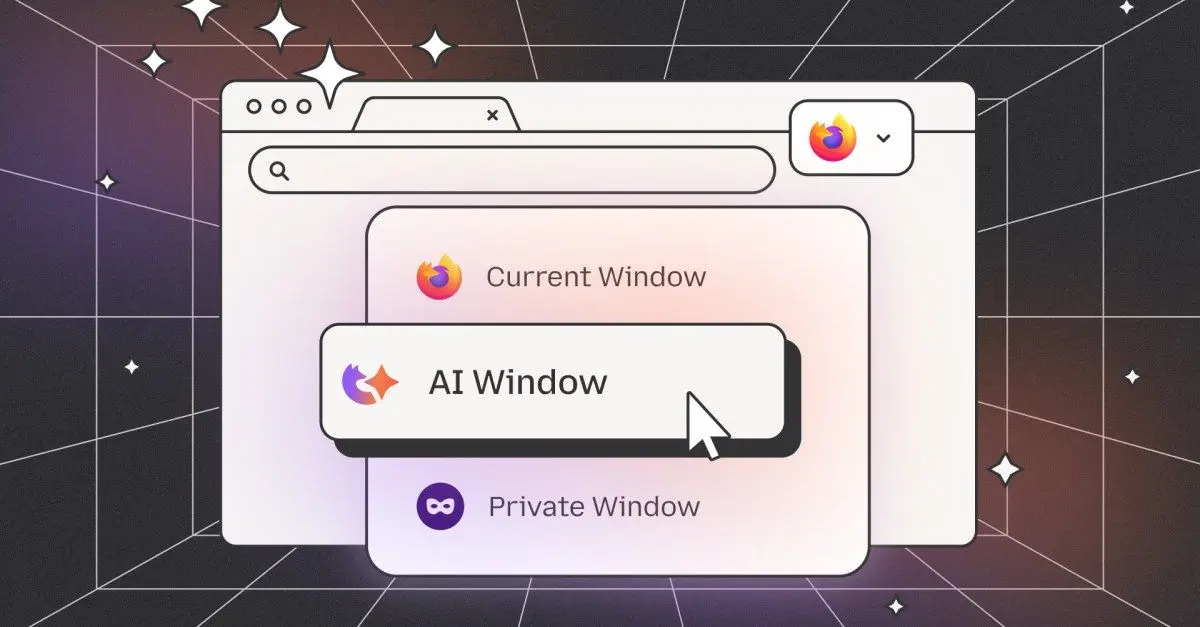
Mozilla has released Firefox 148 with a dedicated AI controls section that puts user choice and control at the center of its approach to artificial intelligence. The update, which dropped on February 24, includes a Block AI enhancements toggle that disables all current and future AI features with a single click
1
2
. This AI kill switch also blocks any pop-ups or alerts pushing users to try existing or upcoming AI features, offering a completely AI-free browsing experience for those who want it3
.
Source: Lifehacker
The new settings panel appears between "Sync" and "AI controls" in the desktop browser, giving users granular control over which AI features they want to enable
4
. Mozilla CEO Anthony Enzor-DeMeo had promised this functionality after significant user feedback on Reddit, where an open letter critical of AI integration received over 5,000 upvotes on the Firefox subreddit3
4
.
Source: Mashable
Five AI features you can cherry-pick or block entirely
Firefox 148 introduces five specific AI features, all disabled by default and requiring user activation. The automatic language translations feature translates websites in real time as users browse, with Mozilla emphasizing that translations occur through local processing directly on the device rather than in the cloud
1
. Users can highlight specific text for translation or let the web browser continuously translate each page.
Source: PC Magazine
Automatic alt-text generation for PDFs addresses accessibility concerns by creating descriptions for images added to PDF files. This helps screen readers describe visual content for people with vision problems, with Mozilla assuring users that images and text remain on-device and are never used to train AI models
1
. The AI-based tab group suggestions feature uses AI to recommend names for tab groups and suggest other open pages to add to them1
3
.Summaries in link previews let users preview linked pages before clicking by displaying a photo, summary, and key points generated through AI integration
1
. The sidebar feature provides access to AI chatbot providers including ChatGPT, Google Gemini, Microsoft Copilot, Claude, and Le Chat Mistral2
4
.Related Stories

Privacy-focused approach sets Firefox apart
Mozilla's implementation emphasizes privacy through local processing for key features. Ajit Varma, Head of Firefox, told Mashable that the company is "taking a different path, one that puts people, not platforms, in charge" at a time when much of the industry moves toward closed, AI-driven ecosystems
2
. The approach responds to user backlash across the tech industry, where companies like Chrome and Microsoft Edge have integrated AI features more aggressively, with Chrome offering direct access to Gemini and Edge pushing Copilot1
.The user feedback came after Mozilla announced in December that Firefox would "evolve into a modern AI browser," triggering concerns from users who wanted clean, efficient, and reliable products without mandatory AI tools
2
3
. Mozilla promises to add more features to the block-list in the future, ensuring the toggle remains effective as the browser evolves1
. Users can access the new controls by updating to Firefox 148, heading to Settings, and selecting the AI Controls section2
.References
Summarized by

Navi
[2]
Related Stories
Firefox introduces AI browser kill switch to let users block all generative AI features
02 Feb 2026•Technology

Mozilla's new CEO plans AI features for Firefox while promising users an opt-out kill switch
16 Dec 2025•Technology

Mozilla Introduces AI Window for Firefox Amid User Backlash
13 Nov 2025•Technology
Recent Highlights
1
Tennessee Teens Sue Elon Musk's xAI Over Grok AI-Generated Child Abuse Images
Policy and Regulation

2
Supermicro Co-Founder Indicted in $2.5 Billion Nvidia AI Chip Smuggling Scheme to China
Policy and Regulation

3
Val Kilmer to appear posthumously in As Deep as the Grave through AI-generated performance
Entertainment and Society

Recent Highlights
Today's Top Stories



Your Daily Dose of Curated AI News
Don’t drown in AI news. We cut through the noise - filtering, ranking and summarizing the most important AI news, breakthroughs and research daily. Spend less time searching for the latest in AI and get straight to action.

