Gemini now lets you draw edits directly on photos, challenging ChatGPT's image editing tools


2 Sources
2 Sources
[1]
Nano Banana now lets you draw prompts directly on your photos -- Sam Altman is going to hate this
Just days after OpenAI updated ChatGPT Images, Google seems to be taking the wind out of Sam Altman's sails once again. Because now, users can draw or annotate directly on their images inside the Gemini app. With very little effort, users can show the AI exactly what to do, where to do it and how you want it to look. In other words: you don't need to describe your vision in words anymore. You can literally sketch it. Google AI Labs has implemented this strategy before on its lesser known AI tool called, Whisk. But adding this feature to Nano Banana, is the ultimate game-changer. Now, instead of typing, "Remove this person in the background" or "Make the sky brighter on the left side," you can circle the exact spot and let Gemini handle it. This completely changes AI editing by putting the power in the hands of every user -- literally. Visual prompting like this is a big deal, especially for anyone who gets easily frustrated trying to describe small visual tweaks or doesn't want to rewrite a prompt five times just to get the right crop or object removed. Ultimately, this update means users can now do precision editing without Photoshop skills, which turns Gemini into a kind of a unicorn. This is something competing tools like ChatGPT and even Photoshop Generative Fill don't fully offer yet -- at least not with this level of mobile-first simplicity. And yes, it works right inside the Gemini app, not just in the web UI. When users have the ability to draw their edits and bring them to life, things get exciting fast. This type of editing could be useful for: Causual users, non-designers and anyone who wants to make edits on the fly -- without design skills or even knowing the right terminology, can make it happen. Gemini's new image annotation feature brings a whole new layer of control to prompting. You don't need to be good at describing edits anymore, you just need a finger and a vision.
[2]
Gemini Just Added More AI Image Editing Tools
David Nield is a technology journalist from Manchester in the U.K. who has been writing about gadgets and apps for more than 20 years. One of the ways AI models are rapidly improving is in their image editing capabilities, to the extent that they can now quickly take care of tasks that would previously have taken a substantial amount of time and effort in Photoshop. This is undoubtedly one of the main reasons Adobe has decided to introduce its own ChatGPT plug-ins. Want your t-shirt to be blue rather than red? Need to cut out a person or an object from an otherwise perfect group selfie? These are tricks that AI chatbots are now able to do cleanly and professionally, from just a text prompt. You don't need to have any digital photo editing skills; you only need to describe what you want to happen. Over the past few months, both Gemini and ChatGPT have become better at more precise edits. They're able to tweak part of an image and leaving the rest of it untouched, rather than rendering everything again from scratch just to alter one detail. Now Gemini has quietly added some more markup tools for this job. Google hasn't said anything officially about these markup tools, which suggests the feature is still in testing (it's also previously been spotted by the team at Android Authority). If you're not seeing these tools, try quitting and restarting the Gemini app on mobile, or refreshing the app on the web -- and if you still can't see the options after that, you may have to be wait a little bit longer If this functionality has rolled out to you, you should be able to upload an image in a chat using the + (plus) button in the prompt box, and then tap or click on the image thumbnail to find the markup tools. At the moment, they only show up before the image has been edited -- you can't find them after you've started generating edits. The easiest tool to understand is the drawing tool, which is enabled via the icon that looks like a scribble. You can use this to highlight a particular part of an image -- a space in the sky, a lamppost in the street, a face in a crowd -- and then describe the change you want Gemini to carry out. For example, rather than just saying "add a cartoon dragon in the sky" in your prompt, you can actually combine that prompt with a circle on the image showing exactly where the dragon should go. It gives you even more of that Photoshop-level precision, without cluttering up the interface too much. The scribblings can also be used if you're asking questions about the image. For example, you could circle an actor or an object in a scene and then ask "who is this?" or "what is this?" in the attached prompt. In that sense it works in a similar way to the Circle to Search feature that's available for images on Android. There's also a text tool -- the T icon -- but I'm not sure exactly how you use this (and there's no official help available yet). You can use it to describe changes you want to apply to your picture (like "an add arrow here"), but the text stays in place -- it's almost like a rudimentary text overlay feature, with a choice of colors but no font or styling options. You can use the prompt to manipulate the text you've added, adding outlines and backgrounds for example, so perhaps that's the way it's intended to be used: a more precise editing option, but for text. Presumably once these tools have reached all Gemini users, we'll get some more information from Google on how to use them -- but you may well find they're available to you now.
Share
Share
Copy Link
Google has quietly rolled out image editing markup tools to Gemini, allowing users to draw or annotate directly on photos instead of typing complex prompts. The visual prompting capability enables precision editing by circling specific areas and describing changes, making AI image manipulation accessible to casual users without design skills.
Google Gemini Introduces Visual Prompting for Image Edits
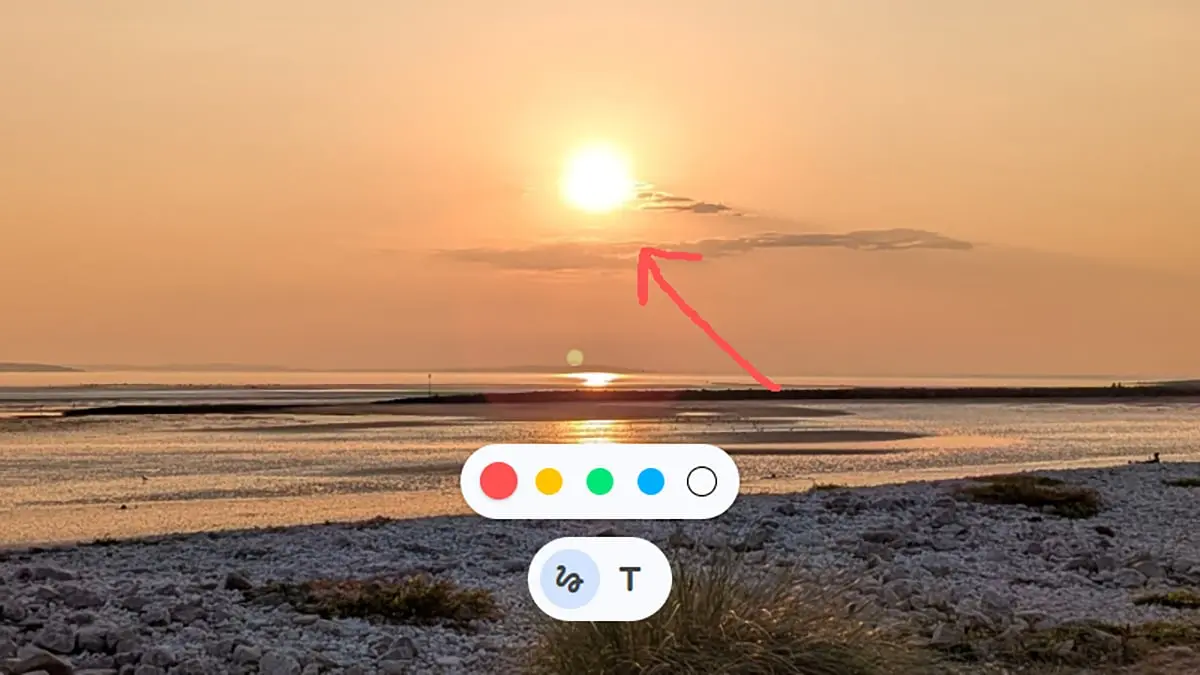
Google has quietly added image editing markup tools to Gemini, fundamentally changing how users interact with AI image manipulation. Instead of crafting detailed text prompts like "Remove this person in the background" or "Make the sky brighter on the left side," users can now draw prompts on photos to show the AI exactly where and what to edit
1
. This visual prompting capability works directly inside the Gemini app on mobile and web, delivering mobile-first simplicity that competing tools like ChatGPT don't fully offer yet1
.
Source: Lifehacker
The update arrives just days after OpenAI updated ChatGPT Images, positioning Google Gemini as a direct competitor to Sam Altman's vision for accessible AI editing
1
. While Google AI Labs previously implemented similar strategies in its lesser-known tool Whisk, bringing this functionality to Gemini significantly expands its reach and practical applications1
.How the Gemini Drawing Tool Works
To access these features, users upload an image using the plus button in the prompt box, then tap or click the image thumbnail to reveal the markup tools
2
. The Gemini drawing tool appears as a scribble icon and enables users to highlight specific parts of an image—whether it's a space in the sky, a lamppost in the street, or a face in a crowd—then describe the desired change2
.For instance, rather than simply typing "add a cartoon dragon in the sky," users can combine that prompt with a circle showing exactly where the dragon should appear
2
. This approach delivers Photoshop-level precision editing without cluttering the interface or requiring professional design skills1
.The markup tools currently only appear before an image has been edited—users cannot access them after generating edits
2
. Google hasn't officially announced these features, suggesting they're still in testing phase, as previously spotted by Android Authority2
.Beyond Drawing: Additional AI Editing Instructions
The drawing capability also functions similarly to Android's Circle to Search feature when asking questions about images
2
. Users can circle an actor or object in a scene and ask "who is this?" or "what is this?" in the attached prompt2
.Gemini has also introduced a text tool, represented by a T icon, though its exact functionality remains unclear without official documentation
2
. Users can add text descriptions directly on pictures and manipulate them through prompts, adding outlines and backgrounds—functioning almost like a rudimentary text overlay feature with color choices but limited styling options2
.Related Stories



What This Means for Casual Users and AI Competition
This development positions Google Gemini ahead of both ChatGPT and even Photoshop Generative Fill in terms of accessible, mobile-first AI image editing
1
. Over recent months, both Gemini and ChatGPT have improved at making precise image edits—tweaking portions of images while leaving the rest untouched rather than regenerating everything from scratch2
.For casual users, non-designers, and anyone making edits on the fly, this eliminates the frustration of rewriting prompts multiple times to achieve the right crop or object removal
1
. Users no longer need to know proper design terminology or be skilled at describing visual tweaks—they simply need a finger and a vision1
.As AI models continue improving their image editing capabilities, tasks that previously required substantial time and effort in Photoshop now happen quickly through simple instructions
2
. This shift has prompted Adobe to introduce its own ChatGPT plug-ins, recognizing the competitive pressure from AI-native solutions2
. If you're not seeing these tools yet, try restarting the Gemini app or refreshing the web interface—the rollout appears gradual as Google continues testing2
.References
Summarized by

Navi
[1]
[2]
Related Stories
Recent Highlights
1
Google releases Gemma 4 with Apache 2.0 license, enabling unrestricted local AI on devices
Technology
2
AI Models Lie, Cheat, and Defy Human Instructions to Protect Other AI Models From Deletion
Science and Research

3
Anthropic discovers emotion-like patterns in Claude that actively shape AI behavior and decisions
Science and Research
Recent Highlights
Today's Top Stories



Your Daily Dose of Curated AI News
Don’t drown in AI news. We cut through the noise - filtering, ranking and summarizing the most important AI news, breakthroughs and research daily. Spend less time searching for the latest in AI and get straight to action.

