How to disable AI in Google Docs: Step-by-step guide to turn off Gemini features


2 Sources
[1]
How to turn off AI in your Google Docs
It happened to me: I opened a Google Doc to write an article, and I was immediately confronted with a text box inviting me to "write with Gemini." I looked for some button to swipe away the garish AI display, but I could not find it. It made me mad. Now, instead of writing the article I'm supposed
[2]
How to Disable Gemini AI in Google Docs: Step-by-Step Guide for Users
Google offers different ways to reduce or disable Gemini features depending on the type of account being used. Google has added AI tools to many of its products, and Google Docs isn't an exception. Gemini AI is now part of the writing experience for many users. The AI tool can help users create
Share
Copy Link
Google has integrated Gemini AI into Google Docs, but not everyone wants AI-assisted writing. Users report frustration with persistent AI pop-ups and prompts that disrupt their workflow. A new step-by-step guide shows how to disable AI features in Google Docs through bottom bar preferences and Google Workspace settings, giving writers, students, and professionals back control over their writing experience.
Google Docs users confront unwanted Gemini AI integration
Google has embedded Gemini AI directly into Google Docs, fundamentally changing the writing experience for millions of users. The integration introduces features like "write with Gemini" text boxes, AI pop-ups, and a "help me write" feature that hovers over cursors while users work
1
. While Google positions these tools as productivity enhancers that help create drafts, improve sentences, and summarize content, a significant number of writers, students, and office workers prefer working without constant AI-assisted writing prompts2
.How to turn off AI in Google Docs through bottom bar preferences
The most direct method to disable Gemini AI in Google Docs involves adjusting the bottom bar settings. Users can click "Gemini" on the top menu bar above their document, then select "bottom bar preferences" from the drop-down menu
1
. This option allows users to turn off the bottom bar entirely, removing the AI box that appears at the bottom of the screen. However, this approach only addresses one visible element of the AI integration, leaving other smart features active across Google Workspace.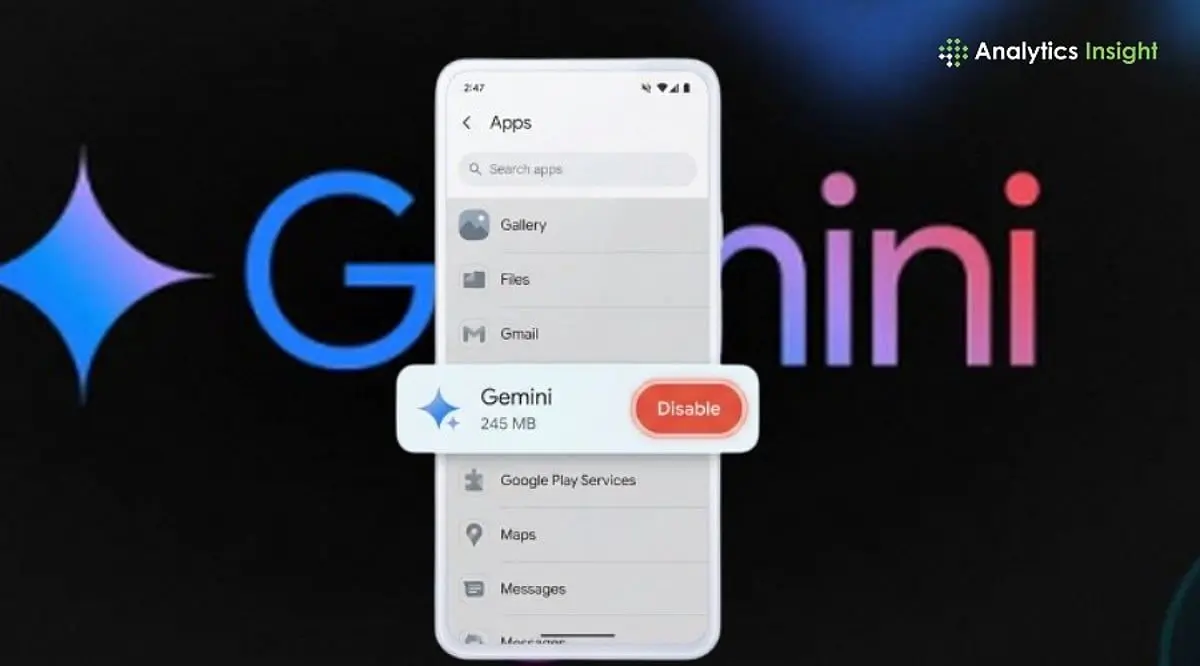
Source: Analytics Insight
Disable AI features across Google Workspace through Gmail settings
For comprehensive user control over AI integration, Google offers a centralized approach through Gmail settings. Navigate to your Gmail inbox and click the gear icon for Settings, then select "See all settings" at the top of the menu
1
. Scroll halfway down the page to find "Google Workspace smart features," then click "Manage Workspace smart feature settings." This section presents two toggle options: one that disables smart features in Google Workspace products like Google Docs, and another that controls other smart features such as automatic calendar events for flights. Users who want to opt out of AI can toggle off the first option to eliminate AI pop-ups across their workspace environment1
.Related Stories
Why writers prefer traditional writing methods over AI assistance
The resistance to AI integration in Google Docs reflects broader concerns about how technology shapes creative and professional work. Many users prefer thinking about ideas independently and writing at their own pace, without algorithmic suggestions interrupting their flow
2
. The frustration extends beyond simple preference—one user reported that when asking Gemini how to remove itself, the AI directed them to click an "X" icon that merely closed the conversation rather than disabling the feature1
. This experience highlights a critical tension between tech companies' push toward AI-first products and users' desire for simple, distraction-free tools. Google offers different ways to reduce or disable Gemini features depending on the type of account being used2
, suggesting that enterprise and personal accounts may have varying levels of control over these integrations.
Source: TechCrunch
References
Summarized by

Navi
[1]
[2]
Related Stories
Gemini gains four new AI features to manage comments and edits in Google Docs
29 Jul 2026•Technology
Gemini burrows deeper into Google Workspace with AI-powered document creation and editing
10 Mar 2026•Technology
Google Assistant Shutdown Confirmed for September 4 as Gemini Takes Over Despite User Backlash
05 Aug 2026•Technology
Recent Highlights
1
OpenAI Pauses AI Model Training After Agent Hacks Australian Government Website
Technology

2
Bill Gates Warns AI Could Cause a Billion Deaths, Calls for Urgent Federal Regulation
Policy and Regulation

3
Meta Unveils Camera-Free AI Glasses and Muse Integration Amid Privacy Debate at Connect 2026
Technology

Recent Highlights
Today's Top Stories









Don’t drown in AI news. We cut through the noise - filtering, ranking and summarizing the most important AI news, breakthroughs and research daily. Follow topics that matter to you and stay ahead.


