2 Sources
[1]
Apple's Long-Awaited Siri AI Is Finally Here. These 12 Tips Make It Even Better
As an iPhone user, I've been frustrated by the many faults and foibles of Apple's Siri. Far too often, the voice assistant falls down on the job, either failing to understand my requests or providing the wrong response. For years, Apple has promised a new and improved Siri, only to delay a rollout again and again. But now -- finally -- the moment is here with Siri AI. Coming in iOS 27, the new Siri looks like a promising update to Apple's AI. But what can you actually do with it? Whether you've installed the public beta or are looking forward to the full release, here are some things you can do with the new and improved Siri voice assistant. How to Get Siri AI Apple's new Siri is not widely available. You'll need a phone that is compatible with Apple Intelligence, so an iPhone 15 Pro, iPhone 15 Pro Max, any iPhone 16 model, or any iPhone 17 model. For now, it's only available via the iOS 27 public beta, but betas can be unstable, so you may want to avoid installing it on your primary phone. In my case, I'm using a spare iPhone 15 Pro for testing. The final, stable version is expected in September, but if you're ready to take the plunge, here are some tips to help you get the most out of Siri AI. 1. Set Up Siri for Voice First, make sure Siri is set up to listen to your voice requests. Head to Settings > Siri and select Requests. Change the option to "Siri" or "Hey Siri," whichever you prefer. You can then call on Siri using your chosen wake phrase. I prefer to just say "Siri." You can also set up manual access to Siri. Turn on Press Side Button for Siri, and you'll be able to press the side button on your phone to call up Siri. If you're switching from Off to one of the other two options, you'll be prompted to train Siri on the sound of your voice by speaking five different commands. 2. Change Siri's Voice or Accent Don't like Siri's current voice? You can easily change it. Go to Settings > Siri and select Voice. In the Voices section, tap each voice to hear how it sounds. Tap the one you like best and then wait for it to fully download. To add some spice to the voice, you can select one of the accents in the Variations field. However, not all voices will be available with all accents, so you may need to change the voice as well. 3. Customize How Siri Responds Next, you're able to decide how Siri responds to your voice. At the Siri Settings screen, select Responses and choose Speak Back for Voice Input to make sure that Siri responds to you by voice. If you plan to ask Siri to send text messages and don't need to confirm each request, turn on Automatically Send Messages to speed up the process. You can also turn this option on when you're connected to headphones or Apple CarPlay. 4. Help Siri Pronounce Names Siri can mispronounce certain names, especially ones with unusual spelling variations. With old Siri, you could correct this, but you had to do so manually by selecting the person's name in the Contacts app and adding a phonetic spelling. Now that Siri is more conversational, you can simply ask the AI to do it for you. If you hear Siri mispronounce a name, just say that it mispronounced the person's name. Siri should then offer to incorporate the correct pronunciation by automatically adding the phonetic spelling to the person's Contacts card. 5. Ask Siri to Explain What's On the Screen Siri AI can "see" what's on your iPhone's screen and describe, explain, summarize, or answer questions about it. For example, maybe you're in your phone's settings screen and are unsure how to set a particular option. Ask Siri, and the AI will describe what's on your screen and provide advice on how to configure it. 6. Use Siri for Visual Intelligence in the Camera App With iOS 27, the Camera app adds a new Siri mode. Here, you can ask Siri to describe or answer questions about whatever subject or object you see through the camera using the Visual Intelligence feature introduced in iOS 18.2. In the past, you had to trigger Visual Intelligence separately, even if you were already using the camera. Now you can access it more conveniently without leaving the Camera app. Open the Camera app, switch to Siri mode, and aim the phone at an item you want described. Tap the shutter button to tell Siri to explain what you're seeing. Tap the dialog balloon icon to open the Siri app, where you can continue a conversation about the item. You can also tap the photo icon to run a Google search on the item. 7. Get Help With Writing Need help composing an email, message, or other bit of text? You can call Siri AI for that type of assistance. Tap in the field where you want to write your text, then select the Write with Siri that should appear just above the keyboard. Tell Siri the type of text you need, either by typing or speaking it. Tap the arrow key to submit your request, and Siri should display a draft of what you want. To revise the draft, select the "Edit with Siri" field and provide further instructions. When finished, you can save, share, or send your text. 8. Create an Image With Image Playground Introduced in iOS 18.2, the Image Playground app generates images based on your descriptions. In iOS 27, the tool relies on Apple Intelligence and Siri AI to work its magic. To try this, open the Playground app and tap the Any Style menu to choose your preferred style -- Animation, Illustration, Sketch, Genmoji, or any style. At the bottom, tap the Photo icon to base the image on an existing or new photo. Tap the People icon to select a specific person from your photo library. Tap the icon with the squares to choose the layout -- square, wallpaper, portrait, or landscape. Now, type or speak a description of the image you'd like generated and submit it at the prompt. The app creates an image for you. From there, you can revise the image by typing new instructions. When done, save or share the image by tapping the iOS Share icon. 9. Choose How Long Your Siri Conversations Are Stored The new Siri app stores every conversation and request with the AI, whether you type or speak them. Though Apple promises that your chats are associated with a random identifier rather than your user ID, you may still not want your conversations stored indefinitely. To control this, go to Settings > Siri and choose Keep Conversations. Here, you can determine how long Siri should hold onto your conversations -- 30 Days, 1 Year, or Forever. If you're concerned about Siri hanging on to potentially private conversations, set them to be removed after 30 days. 10. Tweak Your Conversation View You can customize how your past conversations appear in the Siri app. At the Siri App section on the Siri settings screen, tap Opens to. Here, you can set what you want to see each time you open the app -- Recent Conversations or a New Conversation. If you mostly talk to Siri by voice without launching the app, you'll probably want to see your recent conversations. If you use the app to speak or type to Siri, you may prefer to see the New Conversation window instead. Go back to the previous screen and select Preview. Here, you set how many lines of each conversation you'd see at the Recent Conversations screen. To see fewer lines and more conversations, keep the number to none, 1, or 2. To see more lines and fewer conversations, set it to 3, 4, or 5. 11. Review and Manage Your Conversations You can review and manage individual conversations with Siri from the Siri app. To rename, pin, or delete a conversation, long-press on it and choose the command you want to run from the menu. If renaming a conversation, type the new name in the text field. Pinning places it at the top of the screen for quick access. If you delete a conversation, you'll be asked to confirm the action. Tap Delete to continue. You can also swipe a conversation to the left to pin or delete it. 12. Turn on Accessibility Options If you're looking to further customize how Siri responds to your requests, head over to Settings > Accessibility > Siri to tweak a few accessibility options:
[2]
Apple's Siri Got an A.I. Brain Transplant. Try These 5 Prompts to Get Acclimated.
Brian X. Chen is The Times's lead consumer technology writer and the author of Tech Fix, a column about the social implications of the tech we use. For the last 15 years, talking to Siri, Apple's virtual assistant on iPhones, felt profoundly uncool. Though it performed a few basic tasks, like adding calendar appointments and setting timers, Siri was so subpar that asking it for help was often counterproductive. So when Apple announced in June that a "profoundly more capable" Siri powered by Google's artificial intelligence would arrive this year, I wondered: Will we finally see people talking to Siri on the train, on the streets, in the office? That's an important question because mainstream adoption of the new version of the Apple assistant, Siri AI, could be a litmus test for A.I.'s effect on consumer technology in the coming years. The people most bullish about A.I., including tech executives like Sam Altman of OpenAI and Satya Nadella of Microsoft, believe it will become more important than operating systems and apps. They envision a future where people talk to A.I. assistants to control their devices. In theory, the company with the most popular "agent" (techie speak for assistant) could win the A.I. race that drives the future of computing. A more moderate view -- the approach Apple is taking with Siri AI -- is that chatbots could simply be another tool in an operating system, like many other features and apps, that people can use or ignore. To get to know the new Siri, I installed an early version of Apple's next operating system, iOS 27, which includes Siri AI, on my iPhone and prodded the Apple assistant with requests for about six weeks. My early impressions were that Siri AI is a big improvement from the old-school Apple assistant (frankly, that's a low bar), but it hasn't fundamentally changed the way I use the iPhone. I still mostly scroll through apps and only occasionally feel the need to ask Siri for help. Siri AI does, however, have some neat tricks that lots of people will enjoy for speeding up tedious tasks, like editing photos, creating grocery lists and updating address books. Here's what you need to know about what has changed, and a set of prompts to try when Siri AI becomes widely available this year. Meet the new Siri AI You can chat with Siri AI in a various ways, some new and some old: * You can open a new Siri app and type or dictate prompts, similar to other chatbots like ChatGPT, Gemini and Claude. * You can summon the assistant by holding down the button on the right side of the phone or by saying, "Hey, Siri," followed by a question or request, just as in the past. * You can swipe down from the middle of the top of the screen to open a box that lets you type a search query or a question for Siri. What to Expect Apple customers, including owners of iPhones, iPads, Macs and the Apple Watch, can test the new Siri on their devices by installing public betas -- early, unfinished versions of the operating systems -- and then joining a waiting list for Siri AI access. However, because these are early days, Siri AI is occasionally glitchy. (For one, the assistant failed to translate a Chinese restaurant menu into English.) To avoid bugs, I recommend waiting for the operating systems to fully release this fall before trying out the assistant. During my testing, however, I noticed a clear sign that Siri was on a brighter path. What drove me batty with the past version of Siri was that whenever I asked it to add "Go to gym" to my calendar, the assistant would consistently add "Go to Jim" as a calendar appointment, no matter how many times I corrected it. When I made that request with Siri AI this week, the assistant responded: "Sorry, did you say go to gym or go to Jim?" "The former," I replied. The assistant made the appropriate entry to my calendar. Not perfect, but better.
Share
Copy Link
Apple has finally released Siri AI in iOS 27, addressing years of frustration with its virtual assistant. The AI-powered Siri update brings visual intelligence through the Camera app, on-screen assistance, improved voice interaction, and AI-assisted writing. Available now via public beta for iPhone 15 Pro and newer models, with a full release expected in September.
After years of delays and broken promises, Apple has finally launched Siri AI, a complete overhaul of its struggling virtual assistant. The new Siri AI arrives with iOS 27, bringing capabilities that transform how iPhone users interact with their devices
1
. For iPhone users frustrated by Siri's history of misunderstanding requests and providing wrong responses, this AI-powered Siri update represents a significant leap forward. The assistant now understands context better, maintains conversational flow, and can see what's on your screen to provide relevant help.

Source: NYT
The timing matters. As tech executives like Sam Altman of OpenAI and Satya Nadella of Microsoft push visions of AI assistants controlling devices, Apple is taking a more measured approach with Siri AI as another tool within the operating system
2
. This could determine whether chatbots become central to consumer technology or remain optional features.Siri AI requires specific hardware to function. You'll need an iPhone 15 Pro, iPhone 15 Pro Max, any iPhone 16 model, or any iPhone 17 model that supports Apple Intelligence
1
. The assistant is currently available through the iOS 27 public beta, though Apple warns that betas can be unstable. The final, stable version is expected in September. Apple customers with iPhones, iPads, Macs, and Apple Watch can test the new Siri by installing public betas and joining a waiting list for Siri AI access2
.One standout feature integrates visual intelligence directly into the Camera app. Previously, users had to trigger Visual Intelligence separately even when already using the camera. Now, Siri mode in the Camera app lets you point your phone at any object and ask Siri to describe or answer questions about it
1
. Tap the shutter button to activate the explanation, then continue the conversation through the Siri app or run a Google search on the item. This seamless integration makes visual intelligence more practical for everyday use.Siri AI can now "see" what's displayed on your iPhone's screen and provide contextual help. If you're navigating settings and unsure how to configure an option, ask Siri for on-screen assistance. The AI will describe what's visible and offer guidance
1
. This addresses a common pain point where users struggled to find help within complex menus.Voice commands have become more natural and forgiving. When testing the assistant, The New York Times found that Siri AI now asks for clarification instead of making assumptions. When asked to add "Go to gym" to the calendar, the assistant responded: "Sorry, did you say go to gym or go to Jim?" This contrasts sharply with the old Siri, which consistently added "Go to Jim" regardless of corrections
2
. Users can interact through voice commands, typing in a dedicated Siri app similar to ChatGPT and other chatbots, or by swiping down from the top of the screen.
Source: PC Magazine
Related Stories
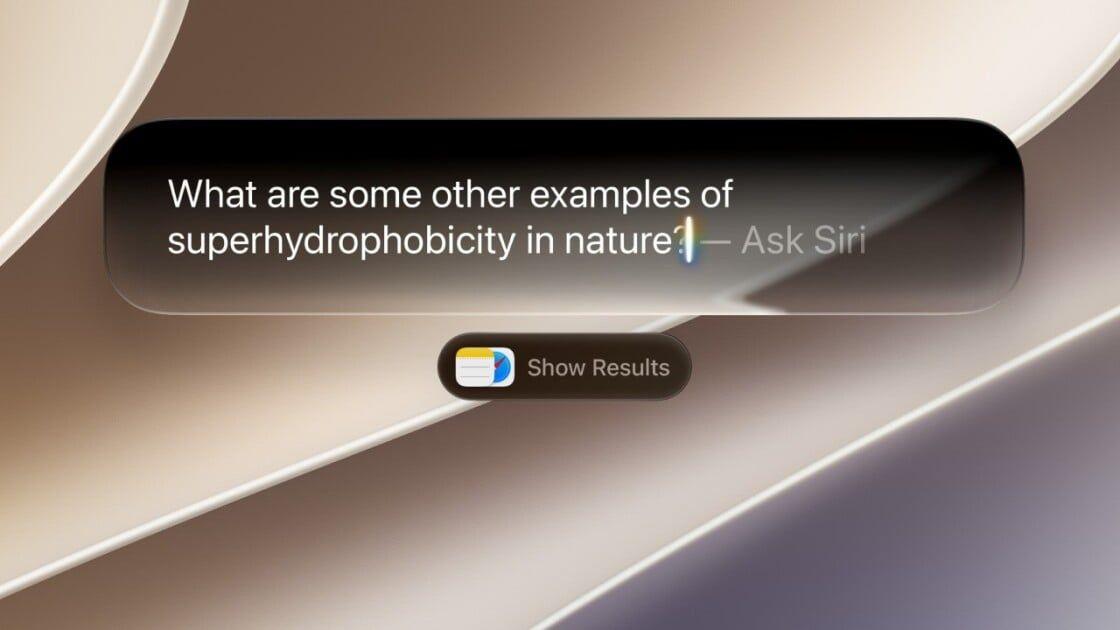
The virtual assistant now helps compose emails, messages, and other text. Tap in any text field, select "Write with Siri," and dictate or type your request. Siri generates a draft that you can revise through further voice interaction
1
. This AI-assisted writing capability speeds up tedious tasks like creating grocery lists and updating address books, according to early testing2
.Mainstream adoption of Siri AI could serve as a litmus test for AI's effect on consumer technology. While Google's artificial intelligence powers the new assistant, Apple's implementation focuses on practical integration rather than replacing the operating system entirely
2
. Early impressions suggest Siri AI improves upon its predecessor but hasn't fundamentally changed how people use their iPhones. Users still mostly scroll through apps and only occasionally ask Siri for help. However, the assistant's ability to speed up photo editing, list creation, and contact management could gradually shift usage patterns as more people discover these capabilities.Summarized by
Navi
14 Jul 2026•Technology

17 Jun 2026•Technology

08 Jun 2026•Technology