Gemini in Chrome gets Select from Screen feature to analyze on-screen content directly


2 Sources
[1]
Gemini in Chrome is getting yet another version of Circle to Search
Users will find a new "Select from screen" option when providing content for Gemini to see. Google is clearly enamored with the idea of using screen content to initiate searches, and over the years we've seen variation after variation on this same theme, from Google Lens to Circle to Search.
[2]
Gemini in Chrome can now see exactly what you're looking at on screen
Google's new "Select from screen" tool makes it easier to ask Gemini questions about text and images in a browser tab. Google is making Gemini a lot more aware of what's happening inside Chrome. The company has started rolling out a new "Select from screen" feature that lets users highlight
Share
Copy Link
Google launched a Select from screen feature for Gemini in Chrome, enabling users to highlight text and images from webpages and send them directly to the AI assistant. Available in Chrome 149, the tool removes friction by letting Gemini understand exactly what's on screen without manual descriptions, marking another step in Google's push to make AI-driven search and interaction tools more contextual.
Google Introduces Select from Screen Feature for Gemini in Chrome
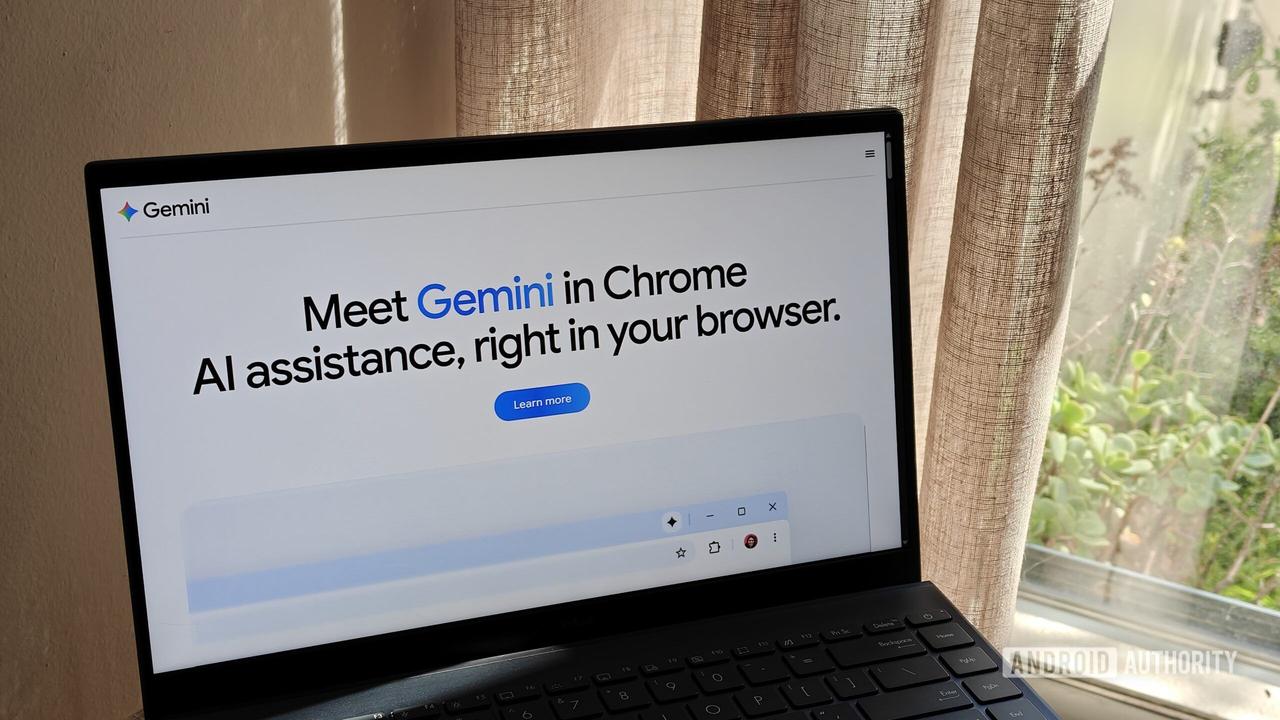
Google has begun rolling out a new Select from screen feature for Gemini in Chrome, allowing users to highlight specific screen content and send it directly to the AI assistant for contextual analysis. The update, available as part of Chrome 149, represents Google's latest effort to integrate AI-driven search and interaction tools more deeply into the browsing experience
1
2
.
Source: Android Authority
Accessing the tool is straightforward. Users need to click Ask Gemini, then hit the plus sign to open Gemini's Add menu, where they can select the new "Select from screen" option. This activates a box-drawing tool that lets users highlight text, images, or multiple areas of on-screen content simultaneously. Once highlighted, users can present Gemini with their prompt, and the AI assistant will analyze the selected content without requiring manual descriptions
1
.How Select from Screen Differs from Existing Tools
The new capability feels similar to Chrome's existing integration with Google Lens, but with a crucial distinction. While Google Lens directs users to a regular Google Search page where they can engage with AI Mode, the Select from screen feature leans harder on Gemini in Chrome, keeping the interaction within the AI assistant's conversational interface
1
. This approach reflects Google's strategy to make the Gemini AI assistant feel less like a standalone chatbot and more like an integrated tool that understands what users are actively doing[2](https://www.digitaltrends.com/computing/gemini-in-chrome-can-now-see-exactly-what-you're looking-at-on-screen/).The feature joins Google's growing collection of screen-based search tools, including Google Lens and Circle to Search. While this might seem redundant, each tool serves slightly different use cases and contexts, though they all share the same core concept of using visual content to initiate searches
1
.Requirements and Availability
To use the Select from screen feature, users must have Gemini in Chrome enabled and be signed in with a Google account. The AI-powered functionality won't work in Incognito mode, which may concern privacy-conscious users. However, Chrome's Google Lens support remains available without an account requirement, even in Incognito browsing
1
.The feature is rolling out now to Chrome users who have updated to Chrome 149. Some users may need to restart their browser before the option appears in the Gemini interface[2](https://www.digitaltrends.com/computing/gemini-in-chrome-can-now-see-exactly-what-you're looking-at-on-screen/).
Related Stories

Broader Context and Future Implications
The timing of this release coincides with another significant Gemini upgrade announced the same day. Developers can now access computer use capabilities directly through Gemini 3.5 Flash, enabling AI agents to see, reason, and take actions across browsers, mobile apps, and desktop environments. Google indicates this integration improves long-horizon tasks such as software testing, enterprise workflows, and multi-step automation jobs[2](https://www.digitaltrends.com/computing/gemini-in-chrome-can-now-see-exactly-what-you're looking-at-on-screen/).
This update signals Google's broader ambition to remove friction from AI interactions. By enabling Gemini to understand context and interact with on-screen content directly, Google is moving toward an AI assistant that can anticipate intent and help users complete tasks rather than simply answer questions. The focus on user experience improvements suggests Google is responding to the growing expectation that AI should understand what users are looking at without requiring extensive manual input[2](https://www.digitaltrends.com/computing/gemini-in-chrome-can-now-see-exactly-what-you're looking-at-on-screen/).
References
Summarized by

Navi
[1]
[2]
Related Stories
Google Integrates Gemini AI into Android's Text Selection Menu for Instant Queries
05 Mar 2025•Technology

Google expands Gemini in Chrome to UK users, bringing AI-powered browsing assistant to desktops
14 Jul 2026•Technology

Google Integrates Gemini AI into Chrome Browser for Enhanced User Experience
21 Mar 2025•Technology

Recent Highlights
1
Microsoft and Nvidia Launch Surface Laptop Ultra: A $2,599 AI-Ready PC With RTX Spark Chip
Technology

2
Scientists Build AI Model That Reconstructs Images From Brain Scans in Record Time
Science and Research

3
Anthropic AI Cuts Live Internet Access After Model Sends False Homicide Tip to Philadelphia Police
Technology

Recent Highlights
Today's Top Stories






Don’t drown in AI news. We cut through the noise - filtering, ranking and summarizing the most important AI news, breakthroughs and research daily. Follow topics that matter to you and stay ahead.


