Users ditch bloated AI wrappers for llama.cpp and Ollama as LLMFit solves compatibility issues


4 Sources
[1]
Stop guessing which local AI models fit your hardware -- this free tool does it for you
Gaming has been Samarveer's greatest passion, and the Literature graduate in him takes immense joy in dissecting games for their themes, messages, and impact. Samarveer holds a deep appreciation of gaming, and considers the platform to be the most immersive and impactful across all media. He can be
[2]
Most people use Ollama or llama.cpp for local LLMs, but these are the tools I switch to when it gets serious
Ollama has become the default answer when someone asks how to run a local LLM, and for good reason. It's easy, it works across platforms, and it hides enough of the ugly parts that you can go from nothing to a working model in minutes. llama.cpp sits underneath a huge amount of the local AI world
[3]
I switched from LM Studio to llama.cpp, and I'm never going back to a bloated wrapper
Aggy is a veteran writer and editor in the technology and gaming space. Having served as a Managing Editor for high-traffic digital publications, alongside being an editor and consultant for over a dozen sites. Aggy's published work spans a wide and respected array of tech and gaming outlets,
[4]
I stopped fighting LM Studio's model UI and switched to Ollama -- setup took minutes instead of hours
I've been running local LLMs for quite some time now, and LM Studio is one of the best apps to enjoy the benefits of a local LLM on your machine. It's polished, has a nice model browser, and it makes downloading models from Hugging Face feel almost effortless -- until it doesn't. Model downloads
Share
Copy Link
The local AI landscape is shifting as users abandon resource-heavy GUI tools like LM Studio in favor of lightweight alternatives. A new open-source tool called LLMFit now analyzes hardware to recommend compatible models, while llama.cpp and Ollama deliver faster performance with minimal overhead. These command-line tools are proving that simplicity beats polish when running local large language models.
LLMFit Eliminates Hardware Guesswork for Local AI Models
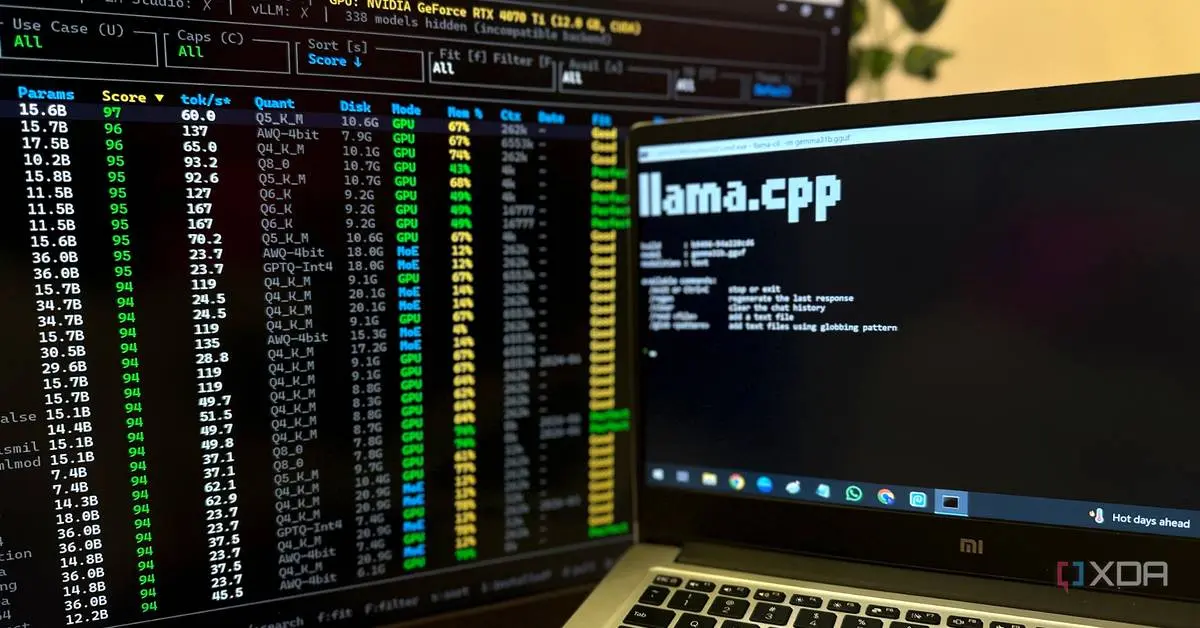
Anyone experimenting with local AI models has likely faced the same frustration: downloading a 10-GB or 20-GB model only to discover it crawls at two tokens per second or fails to fit into memory entirely. This trial-and-error approach wastes time and system resources, but a new open-source tool called LLMFit aims to solve that problem before the first download begins
1
.
Source: XDA-Developers
LLMFit functions as a hardware-aware recommendation engine for running local large language models. After installation via the Scoop command-line installer on Windows, the tool evaluates CPU, GPU, available RAM, and VRAM before ranking over 250 models according to predicted performance on your specific machine
1
. The core feature is a "Fit" score that combines speed, context length, and quality into a single metric out of 100 points, providing a practical shortlist instead of forcing users to decipher benchmark pages.The tool integrates directly with Ollama and llama.cpp, allowing users to launch recommended models without switching between applications. Each recommendation includes workload labels indicating whether a model suits coding, chat, image generation, or mixture of experts tasks
1
. For those moving from cloud AI to self-hosted AI setups, LLMFit addresses a critical pain point in model management and hardware compatibility.GUI Wrappers Consume Resources Needed for Inference
While tools like LM Studio offer polished interfaces with model browsers and chat tabs, they come with substantial overhead that directly impacts performance. LM Studio and similar GUI wrappers are built on Electron, which bundles a full Chromium browser engine with a Node.js runtime
3
. This architecture can consume 1.40 GB of RAM and up to 1.2 GB of GPU VRAM as background overhead before any model even loads.
Source: MakeUseOf
On an 8-GB graphics card, that VRAM allocation isn't trivial—it directly determines which models can run at all
3
. Every megabyte the wrapper takes is a megabyte unavailable for the actual AI work. Users report that their hardware worked harder maintaining the interface than processing model inference, with noticeable latency added during prompt ingestion—the wait time before the first token appears.Running llama.cpp as a native binary eliminates this bloat entirely. The background footprint drops dramatically, and idle VRAM usage falls from several gigabytes to a fraction of one
3
. Prompt processing speeds increase noticeably on first use. Another advantage: llama.cpp updates quickly, while GUI tools lag behind its release cycle by weeks, delaying access to features like multi-modal audio inputs.Ollama Delivers Setup Speed and API Flexibility
Ollama has emerged as a lightweight alternative that strips away visual complexity in favor of speed and automation. This open-source runtime for local LLMs operates through a clean command-line workflow and local HTTP API, starting a background server automatically upon installation
4
. The entire process from fresh install to chatting with a 7B model takes under five minutes on a decent connection.The workflow mirrors Docker's simplicity: ollama pull [model name] fetches the model, ollama run [model name] launches it and drops users into an interactive chat
4
. Switching between models requires no manual unloading or memory management sliders—users simply run a different model name and Ollama handles background processes automatically.The standout feature is Ollama's OpenAI-compatible API exposed at http://localhost:11434/v1. Any tool or script built for the OpenAI API works immediately with local LLMs by pointing the URL to localhost and setting a dummy API key. Developers report switching existing Python scripts to Ollama in 30 seconds by changing only the base URL and model name, with no other code modifications required.
Related Stories
Advanced Tools Turn Local AI Models Into Infrastructure
For users moving beyond desktop experimentation toward production workflows, command-line tools like vLLM and SGLang offer capabilities that GUI wrappers cannot match. vLLM transforms local AI models into proper AI infrastructure with an OpenAI-compatible API server, high-throughput inference, continuous batching, prefix caching, and structured outputs
2
. Its PagedAttention feature manages the model's key-value cache more efficiently to prevent GPU memory from bottlenecking when multiple requests are active or context grows large.
Source: XDA-Developers
SGLang targets structured generation, repeated prompt patterns, and agent-style workloads with features including RadixAttention for prefix caching, prefill-decode disaggregation, speculative decoding, and multi-LoRA batching
2
. These capabilities matter when models drive coding tools, agents, or RAG experiments rather than simple chat interactions. Both tools assume a higher level of technical understanding but become essential once a local LLM functions as backend infrastructure.For Mac users, vMLX leverages Apple Silicon's unified memory architecture through Apple's MLX array framework rather than forcing CUDA-style workflows
2
. It incorporates prefix caching, paged KV cache, continuous batching, and MCP tools while working natively with the hardware's shared memory model. This approach makes large models more practical on laptops than typical consumer hardware might suggest.Why This Shift Matters for Self-Hosted AI Adoption
The move away from GUI wrappers toward command-line tools reflects a maturation in how people deploy local LLMs. What starts as curiosity-driven experimentation often evolves into workflow integration where system resources, latency, and API compatibility become critical factors. LLMFit lowers the barrier to entry by solving the hardware compatibility puzzle upfront, while llama.cpp and Ollama remove the performance penalties that GUI layers impose.
Users no longer need to choose between ease of use and efficiency. Ollama's installation takes minutes instead of hours of configuration, yet delivers the performance gains and API access that developers need for serious projects. The command-line interface that once seemed intimidating now appears simpler than navigating nested GUI menus and troubleshooting download queues.
As cloud AI users increasingly explore self-hosting options, these tools establish a practical path forward. LLMFit ensures hardware investments align with model requirements, while lightweight runtimes like Ollama and llama.cpp prove that local AI doesn't require enterprise-grade infrastructure—just smarter software that prioritizes model performance over interface polish.
References
Summarized by

Navi
[1]
[2]
[3]
Related Stories
Tech enthusiasts build local LLM servers on Raspberry Pi and phones, proving on-device AI works
17 Apr 2026•Technology
Developers ditch cloud AI for local LLM setups running on low-power hardware
30 May 2026•Technology

Developers ditch ChatGPT for local AI coding agents, saving $20+ monthly with powerful local LLM
02 May 2026•Technology

Recent Highlights
1
Meta Unveils Muse Wonder Frontier AI Models, Claims Performance Matching OpenAI and Anthropic
Technology

2
IMF Report Warns AI Market Correction Could Spark Global Financial Crisis With $1.4T at Risk
Business and Economy

3
OpenAI Releases 722 AI-Generated Math Solutions, Triggering Existential Crisis in Mathematics
Technology
Recent Highlights
Today's Top Stories







Don’t drown in AI news. We cut through the noise - filtering, ranking and summarizing the most important AI news, breakthroughs and research daily. Follow topics that matter to you and stay ahead.


