Google Meet AI note-taking expands to in-person meetings with Gemini-powered transcription


2 Sources
[1]
Google Meet's AI Note-Taking Feature Now Works for In-Person Meetings
Gemini can now summarize and transcribe 'impromptu and casual' meetings, not just those from a Google Meet video chat, Google says, though there are a few limitations at launch. Google Meet is expanding its Gemini-powered note-taking feature to support in-person meetings. The "Take Notes" option
[2]
Google Meet Can Now Take Notes During In-Person Meetings Too
You can also conference in someone via a Google Meet call and continue taking notes. Google Meet's "Take Notes for me" feature is one particularly useful implementation of AI. When you're on a video call, Gemini can dictate what's being said, offering summaries and highlights of the conversation.
Share
Copy Link
Google Meet is extending its Gemini-powered note-taking feature beyond video calls to support in-person meetings. The 'Take Notes for me' feature can now transcribe and summarize casual, impromptu discussions using just a smartphone, automatically saving meeting notes to Google Drive for Workspace subscribers.
Google Meet extends AI note-taking beyond video calls
Google Meet is breaking new ground by expanding its Gemini AI-powered note-taking capabilities to support in-person meetings, moving beyond its traditional video conferencing roots
1
. The company's 'Take Notes for me' feature, which previously worked exclusively during video calls, can now transcribe and summarize discussions happening face-to-face in impromptu and casual settings2
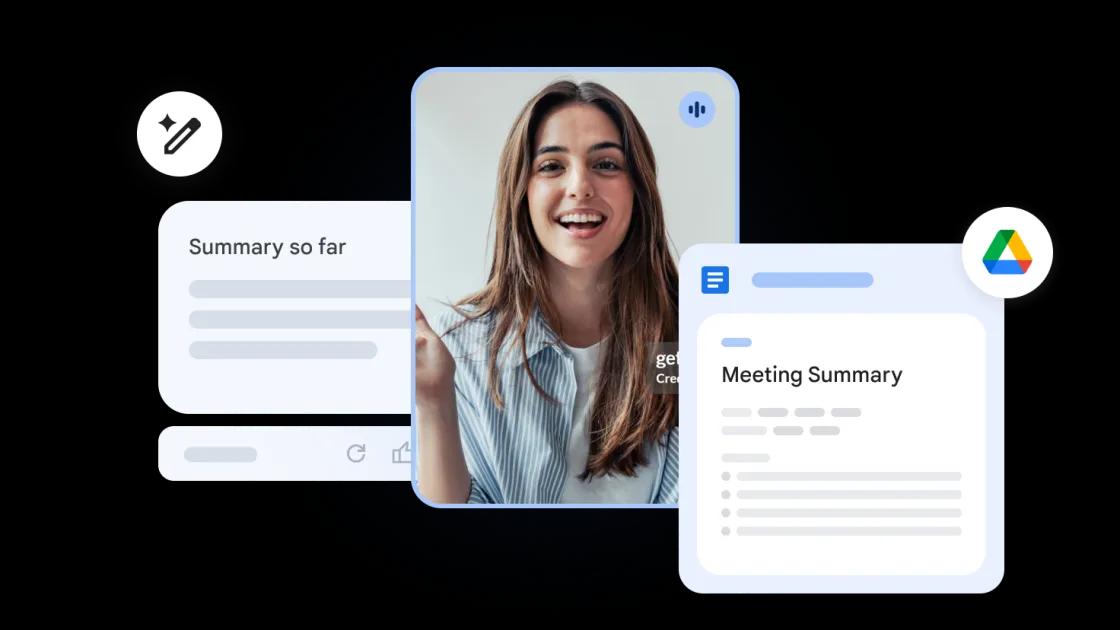
.The expanded functionality addresses a practical need for Google Workspace subscribers who want consistent documentation across all meeting formats. Users can activate the feature by opening the Google Meet app on their device and selecting the 'Take Notes for me' option without starting a video call. By placing the recording device closer to participants, Gemini captures the conversation and generates both a transcript and meeting summary
1
.
Source: PC Magazine
How the feature works for face-to-face conversations
The process mirrors the familiar video call experience. Users can hit 'Pause' at any time to temporarily stop dictation, and 'Stop' followed by 'Stop taking notes' to end the session completely
2
. Once the meeting concludes, the feature automatically saves the notes as a Google Doc in a designated Google Drive folder, maintaining the same workflow that users have grown accustomed to during virtual meetings.One notable advantage is the flexibility to transition mid-meeting. If participants need to conference in someone who isn't physically present, they can seamlessly switch to a video call while continuing to save transcript to Google Drive
2
. This hybrid capability reflects the reality of modern work environments where meetings often blend in-person and remote attendees.Availability and current limitations
The feature is currently limited to Android devices, though Google has confirmed that support for iPhone, iPad, and web platforms will arrive soon
1
. Access remains restricted to Google Workspace subscribers on Business Standard, Business Plus, Enterprise Standard, and Enterprise Plus plans. Since the capability is still part of Google's alpha program, organization admins must enable it for individual accounts before users can access it.
Source: Lifehacker
Language support includes English, French, German, Italian, Japanese, Korean, Portuguese, and Spanish, though the system can only capture words in one language at a time
1
. This limitation may affect multilingual meetings where participants switch between languages.Related Stories


Broader implications for workplace productivity
The expansion positions Google Meet as more than just a video conferencing platform, transforming it into a comprehensive meeting documentation tool that competes with dedicated transcription tools like Otter.ai
2
. According to 9to5Google, the company is also making Gemini's note-taking ability available for Teams and Zoom meetings, suggesting a strategy to embed Google's AI capabilities across multiple platforms1
.Google recently added support for Meet on Android Auto and Apple CarPlay as well, enabling users to attend scheduled meetings while driving
1
. These moves indicate a broader push to make AI-assisted meeting documentation available across different contexts and devices, potentially changing how professionals approach note-taking altogether. As the feature moves beyond alpha testing, watch for expanded language capabilities and integration with other productivity tools in the Google Workspace ecosystem.References
Summarized by

Navi
Related Stories
Recent Highlights
1
Microsoft and Nvidia Launch Surface Laptop Ultra: A $2,599 AI-Ready PC With RTX Spark Chip
Technology

2
Trump Consulted Grok AI Before Ordering Venezuela Invasion and Capture of Nicolás Maduro
Policy and Regulation

3
Scientists Build AI Model That Reconstructs Images From Brain Scans in Record Time
Science and Research

Recent Highlights
Today's Top Stories



Don’t drown in AI news. We cut through the noise - filtering, ranking and summarizing the most important AI news, breakthroughs and research daily. Follow topics that matter to you and stay ahead.


