3 Sources
[1]
How to remap the Copilot key on your keyboard to something more helpful
Follow ZDNET: Add us as a preferred source on Google. If you've purchased a new Windows laptop anytime in the past year or two, you may notice the presence of a dedicated Copilot key on the keyboard. Located to the right of the spacebar, this key quickly launches Microsoft's Copilot AI so that you can ask a question or kickstart a conversation. Naturally, the key is the brainchild of Microsoft, which first introduced it to its own Copilot+ PCs Surface laptops more than two years ago. Third-party laptop vendors like Lenovo, Dell, and HP then jumped on the bandwagon, adding the key to their own Copilot+ PCs. Now, even laptops not designated as Copilot+ models sport the key. The Copilot key is part of Microsoft's effort to stuff its AI into every nook and cranny of Windows. However, adding a new key to a physical keyboard is a rare move. The only other obvious instance is the introduction of the dedicated Windows key to keyboards back in the 1990s. Also: My 5 favorite Windows Insider features in 2026 so far If you don't use Copilot that much or at all, the key is just a waste of space. Even if you do turn to the AI, you can just as easily launch Copilot by clicking its taskbar icon or pressing the Windows key + C. You can even set it to launch by voice if you say "Hey, Copilot." The inclusion of the key also presents one clear drawback. Typically, the key replaces the Right Ctrl key or the Context menu key. Replacing these keys creates problems for people who would otherwise use them for shortcuts or assistive technologies. Even Microsoft has acknowledged that this scenario poses challenges for certain users. In a recent support article, the company revealed that it plans to update Windows 11 later in the year with a setting that would let people remap the Copilot key to act as the Right Ctrl key or the Context menu key. Two ways to remap your keyboard's Copilot key Until then, there are a couple of key (pardon the pun) ways to remap the Copilot key to something more helpful. At the Remap Shortcuts screen, click the pencil icon next to Shortcut in the Select section on the left. Press the Copilot key to register it as the key you wish to remap. You should then see the selected keys as Win (Left), Shift (Left), and F23. Click OK. In the To section on the right, click the drop-down box under Shortcut. Scroll through the list of choices and select the key you wish to activate when you press the Copilot key. For example, you may want to set it to Ctrl (Right) to restore that functionality. You can also disable it entirely, but I think remapping it to something more useful is your best bet. When done, click OK at the upper right. Before you leave PowerToys, make sure the switch is turned on for Keyboard Manager so that it will always be in effect. Now press the Copilot key to confirm that it was remapped to the function you chose. Also: Windows questions? How Copilot can analyze your PC settings now If you remapped it to the right Ctrl key, that's easy enough to test. Open a text file or document and use the Copilot key instead of the Ctrl key for such familiar shortcuts as Ctrl+C for Copy, Ctrl+V for Paste, or Ctrl+Z for undo. If that works, you're good to go. If you ever want to remove the keyboard mapping, just return to Keyboard Manager in PowerToys. Click "Remap a shortcut" and then click the trash can icon next to the remapping you created.
[2]
Hate the Copilot Key? Here's How to Finally Turn It Off
Microsoft acknowledged the introduction of the key on many new Windows laptops had caused 'challenges' for some users, and is set to roll out a way to permanently disable it. Not everyone was happy about the introduction of the Copilot key to Windows PCs, which began rolling out en masse in 2024. Many users complained about the loss of the Right Ctrl key, which Copilot replaced on many Windows laptops, claiming it disrupted their workflows or stopped them using many handy keyboard shortcuts. Now, the tech giant is soon to roll out a "kill switch" for the controversial key. According to a recent support document, first spotted by Windows Latest, Microsoft will soon let you switch the Copilot key back to the Right Ctrl key, or simply switch it off entirely. Users gained the ability to map the key to another AI app, including OpenAI's ChatGPT or Anthropic's Claude, back in late 2024, but it still wasn't possible to kill it off entirely. Microsoft didn't specify when the latest change would roll out to users. But when the change does roll out, you'll need to head to Settings > Bluetooth & devices > Keyboard to remap the Copilot key. If you can't wait that long and would like to simply remap the key right now, head to Settings > Personalization > Text input and then press the drop-down box next to the Customize Copilot key. In the support doc, Microsoft acknowledged some of the issues which Windows users had with the key, saying that many who relied on the Right Ctrl key or Context menu key for keyboard shortcuts or assistive technologies like screen readers "experienced some challenges to their workflows when using these devices." Though turning off the dedicated Copilot key may soon be relatively breezy, turning off Copilot altogether is a different story. Though technically possible on managed devices, you'll need to meet a hefty number of requirements including not launching the Microsoft Copilot app for 28 days, which means disabling automatic starting and managing to not hit the button for almost a month. Regardless of your own thoughts on Copilot, Microsoft's top brass have been very clear about its importance to the future of the company, with CEO Satya Nadella even saying that Microsoft was now 'the Copilot company' at the 2023 Ignite conference.
[3]
Hate the Copilot key in Windows 11? It looks like Microsoft's bringing in the option to remap it to do nothing -- if you feel that's more useful
* A new option for the Copilot key has been spotted in testing * Windows 11 users are getting the ability to remap it to 'Do nothing' * This comes on top of work already underway to redefine the key to Right Ctrl or the context menu Microsoft's latest revolutionary idea for Windows 11 is to have a key on your keyboard which can be remapped to do absolutely nothing. Windows Latest noticed the latest twist in the tale of the Copilot key, as highlighted by regular leaker PhantomOfEarth on X, who spotted the development hidden in a recent Windows 11 preview build. In the choices to customize the Copilot key - which, by default, summons Windows 11's Copilot AI (of course) - there's a new option to simply 'Do nothing'. Yes, that's correct - you can change the key to simply be a pointless piece of plastic that does precisely zip. (Or at least you'll be able to in testing, when this ability comes into play, that is, although some Windows 11 testers have reportedly seen it live in preview already). As you may have seen earlier this year, Microsoft is working on bringing fresh options to the Copilot key that include customizing it to invoke the context (right-click) menu, and to turn it back into Right Ctrl (which was the key that the Copilot button replaced on Copilot+ laptops and some keyboards). Analysis: do nothing, be happy What's the point of a key that does nothing? Good question. Maybe it's the keyboard equivalent of a stress ball - you can hammer on that key as much as you want when you're really annoyed, and it won't splurge a load of characters into the document you're working on as you exorcise your frustrated demons. Okay, so maybe not, but perhaps the idea is that this is aimed at people who really hate the Copilot key, but haven't decided what they might want to remap it to. So, they can go ahead and elect for the key to do nothing if it's accidentally hit, while they figure out what they might want to redefine in its place. That's stretching things, admittedly, but it's the best guess I have. At any rate, it's a harmless enough option, although it feels inescapably odd to have a 'blank' key on your keyboard. How far we've fallen since the Copilot key was first revealed and trumpeted by Microsoft as the biggest thing to happen to keyboards in 30 years since the Windows key was introduced. And indeed more recently, Microsoft promoted the Copilot key as the "button you can press to fix everything", so there's some irony that it could soon (optionally) become the button you can press to fix 'nothing' in a very literal sense. Don't forget that you don't have to wait for Microsoft's Copilot key remapping functions to arrive in the release version of Windows 11. You can use the Keyboard Manager in PowerToys to do this instead, although it'll be far neater to have these options in Windows 11's settings, of course. Follow TechRadar on Google News and add us as a preferred source to get our expert news, reviews, and opinion in your feeds.
Share
Copy Link
Microsoft is rolling out options to remap the Copilot key on Windows keyboards, including the ability to restore the Right Ctrl key or disable the controversial button entirely. The move comes after users complained about workflow disruptions caused by the dedicated AI key, which replaced essential keys on many laptops starting in 2024.
Microsoft is preparing to address widespread criticism of the Copilot key by introducing new customization options that will allow users to remap the Copilot key or disable it completely. According to a recent support document spotted by Windows Latest, the company acknowledged that the dedicated key has created "challenges" for users who rely on the Right Ctrl key or Context menu key for keyboard shortcuts and assistive technologies like screen readers
2
.
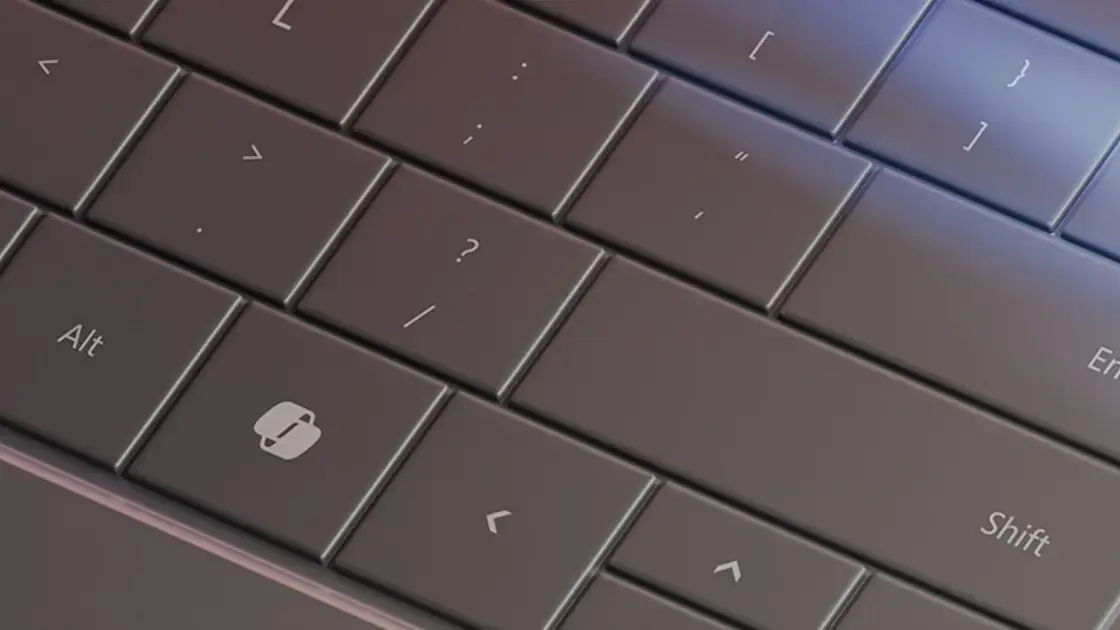
Source: PC Magazine
The Copilot key first appeared on Microsoft's own Copilot+ PCs Surface laptops more than two years ago, before third-party vendors like Lenovo, Dell, and HP adopted it for their Windows keyboards
1
. Located to the right of the spacebar, the key launches the Microsoft AI assistant when pressed—part of the company's broader AI strategy to integrate Copilot throughout Windows 11. CEO Satya Nadella even declared Microsoft "the Copilot company" at the 2023 Ignite conference2
.Microsoft plans to update Windows 11 later this year with settings that will let users remap the Copilot key to act as the Right Ctrl key or Context menu key—the two keys most commonly replaced by the new button
1
. A Windows 11 preview build has revealed an even more surprising option: the ability to set the key to "Do nothing," effectively turning it into a blank key that performs no function when pressed3
.Users already gained the ability to map the key to other AI applications, including OpenAI's ChatGPT or Anthropic's Claude, back in late 2024, but couldn't disable the Copilot key entirely until now
2
. When the update arrives, users will navigate to Settings > Bluetooth & devices > Keyboard to access these new remapping options.For those unwilling to wait for Microsoft's official update, PowerToys offers an immediate workaround. The free utility's Keyboard Manager feature allows users to remap key functions right now
1
. At the Remap Shortcuts screen, users can register the Copilot key (which appears as Win (Left), Shift (Left), and F23) and assign it to any function, including restoring the Right Ctrl key functionality for familiar keyboard shortcuts like Ctrl+C for Copy or Ctrl+V for Paste1
.Related Stories
The backlash highlights a tension between Microsoft's aggressive AI integration and practical user needs. While the Copilot key represents the biggest addition to Windows keyboards in 30 years—since the Windows key debuted in the 1990s—many users find it redundant
1
. Copilot can already be launched via the taskbar icon, the Windows key + C shortcut, or voice command, making a dedicated physical key seem unnecessary to many.The workflow disruptions proved particularly problematic for users who depend on assistive technologies or have ingrained muscle memory for specific keyboard shortcuts. Microsoft's decision to offer comprehensive remapping options—including the unusual "Do nothing" choice—suggests the company recognizes that one-size-fits-all hardware changes don't align with diverse user customization needs. While Microsoft hasn't specified an exact rollout date, these changes signal a more flexible approach to hardware design in future Windows devices.
Summarized by
Navi
[2]
19 May 2026•Technology
17 Oct 2024•Technology

21 Sept 2024

1
Technology

2
Technology

3
Science and Research